In the Orders section, you can view all orders that were either imported from your connected marketplaces and shop systems or created manually. The overview is divided into different status categories, which you can access directly via the sidebar.
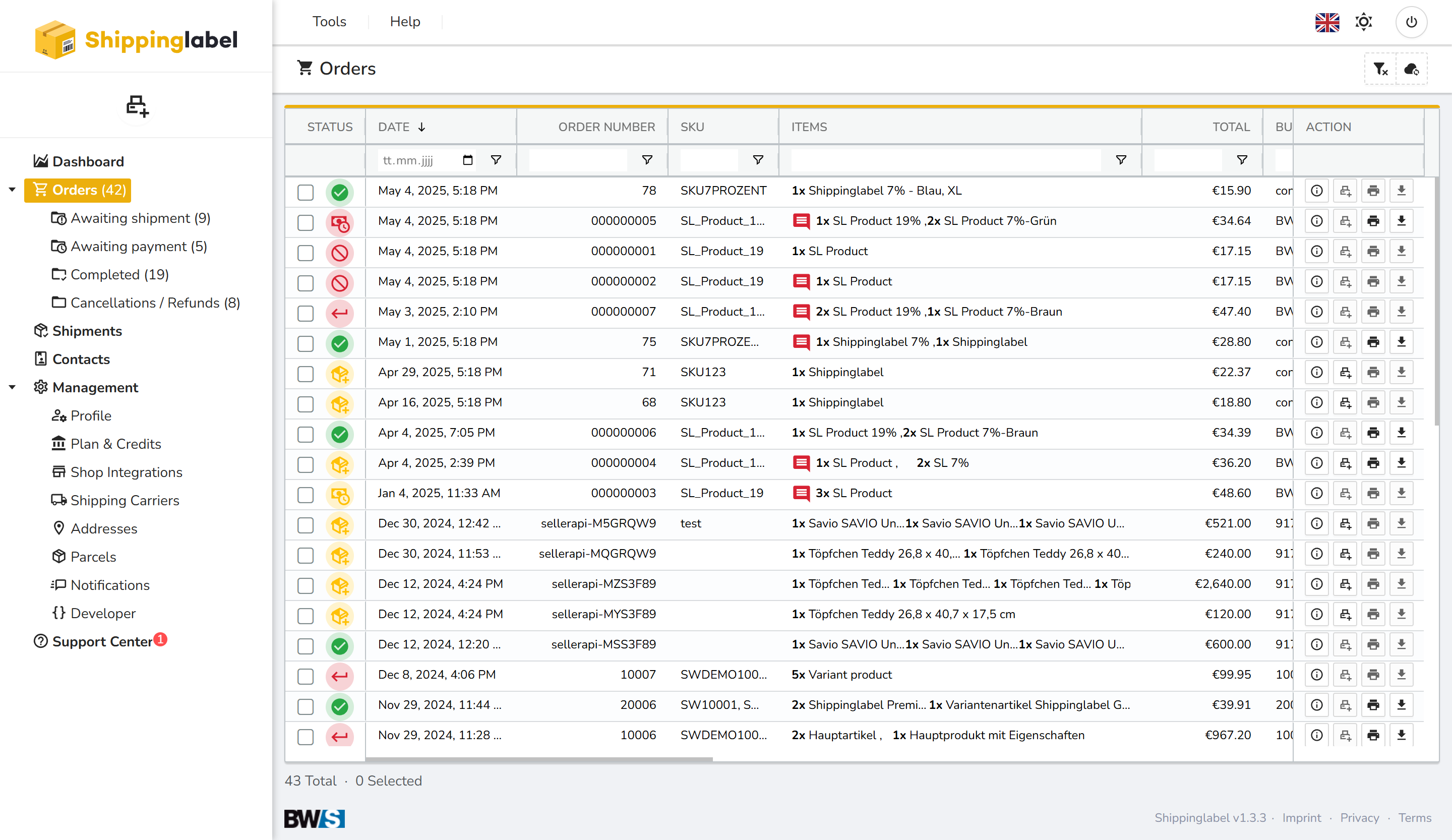
The screenshot above shows the typical Orders view in the app. Using the icons and filter options, you can manage orders and search for specific transactions.
Status Categories
Orders are automatically assigned to one of the following status categories:
- Awaiting Payment: The order has been created but has not been paid yet.
- Awaiting Shipment: Payment has been received, but the order is not yet shipped.
- Completed: Payment and shipment are both complete.
- Cancellations / Refunds: The order has been canceled or refunded.
Order Details at a Glance
By double-clicking an order or clicking the Show details icon, a clear window opens displaying all information about the order. The data is organized into four tabs:
Overview
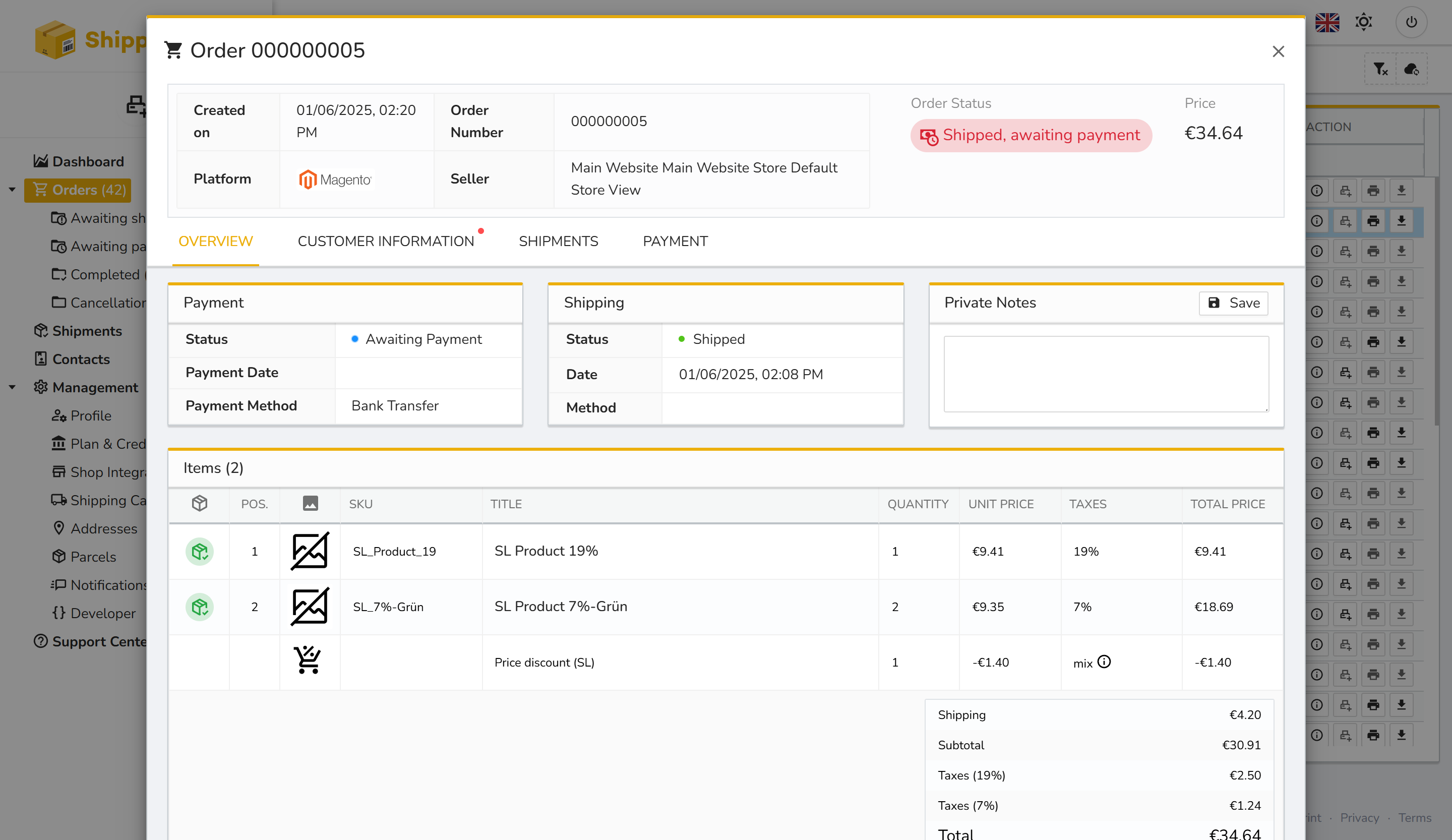
The Overview tab includes:
- Created on, Platform, Seller
- Order Status (e.g. Shipped, awaiting payment, Completed, Canceled)
- Payment Status (with method and date)
- Shipping Status (with method and date)
- Items list with SKU, title, tax rate, and price details
- You can also add Private Notes
➡️ This allows you to immediately see whether an order is ready for shipping or still awaiting payment.
Customer Information
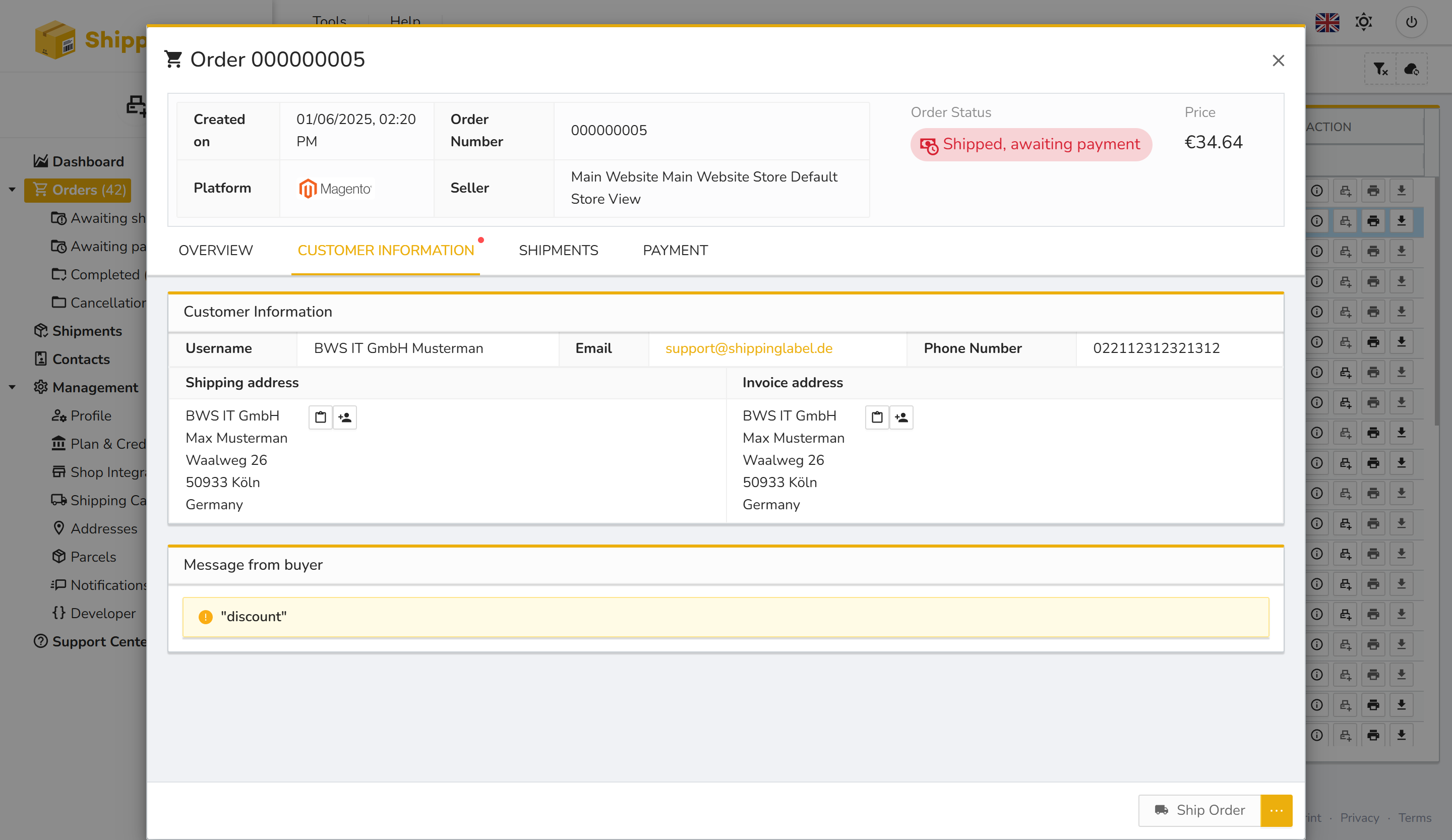
The Customer Information tab includes:
- Username and Email
- Shipping Address (Company, Name, Street, ZIP Code, City, Country)
- Phone Number
- Message from buyer (if available)
➡️ This data is automatically imported from the marketplace and can be adjusted manually depending on the system. Addresses can also be saved to your Contacts.
Shipments
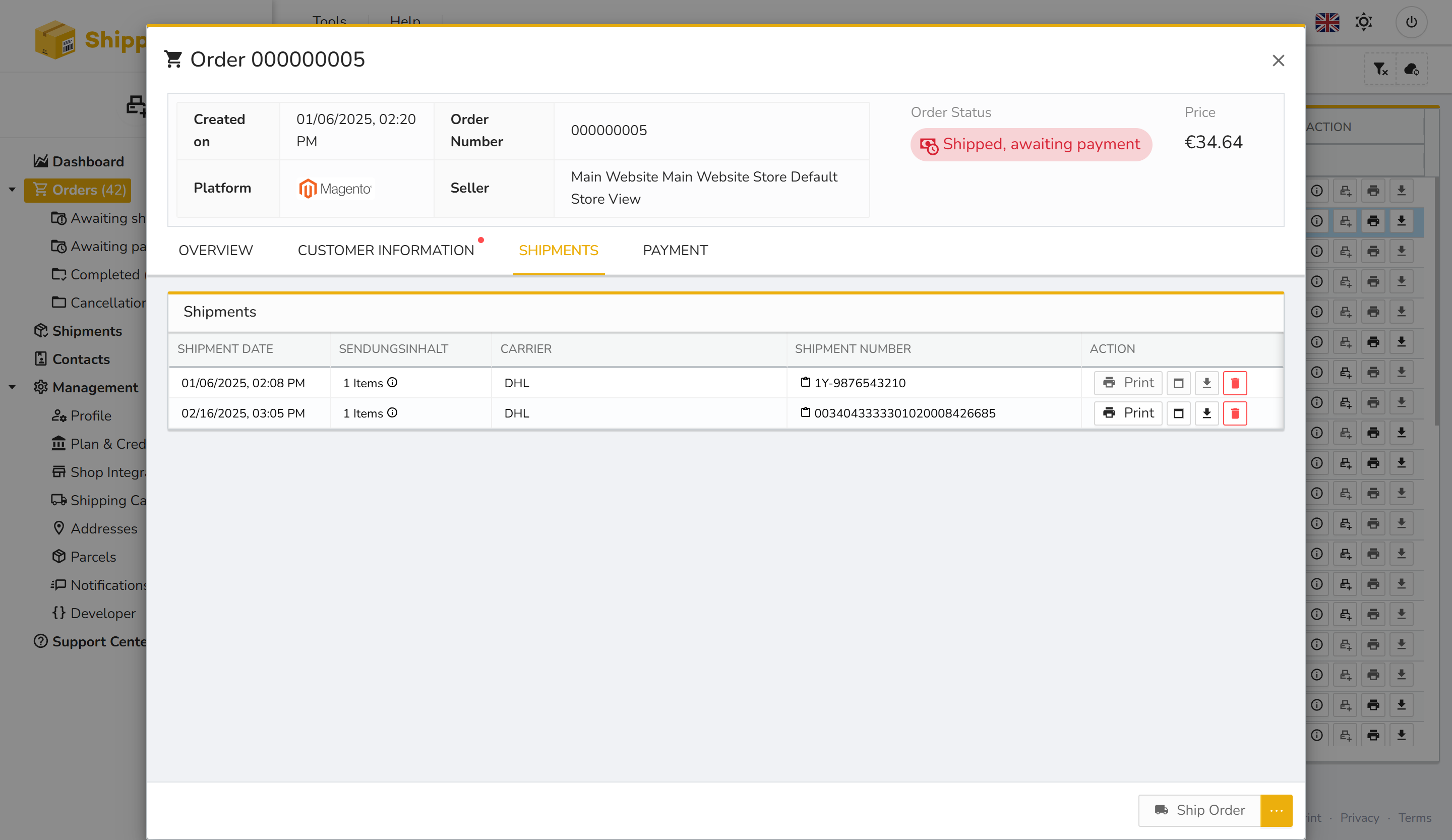
The Shipments tab shows:
- All shipped partial deliveries
- Date and Carrier
- Shipment Number (with copy function)
- Actions for printing, downloading or deleting shipping labels
➡️ If an order has multiple parcels, each shipment is listed separately.
Payment
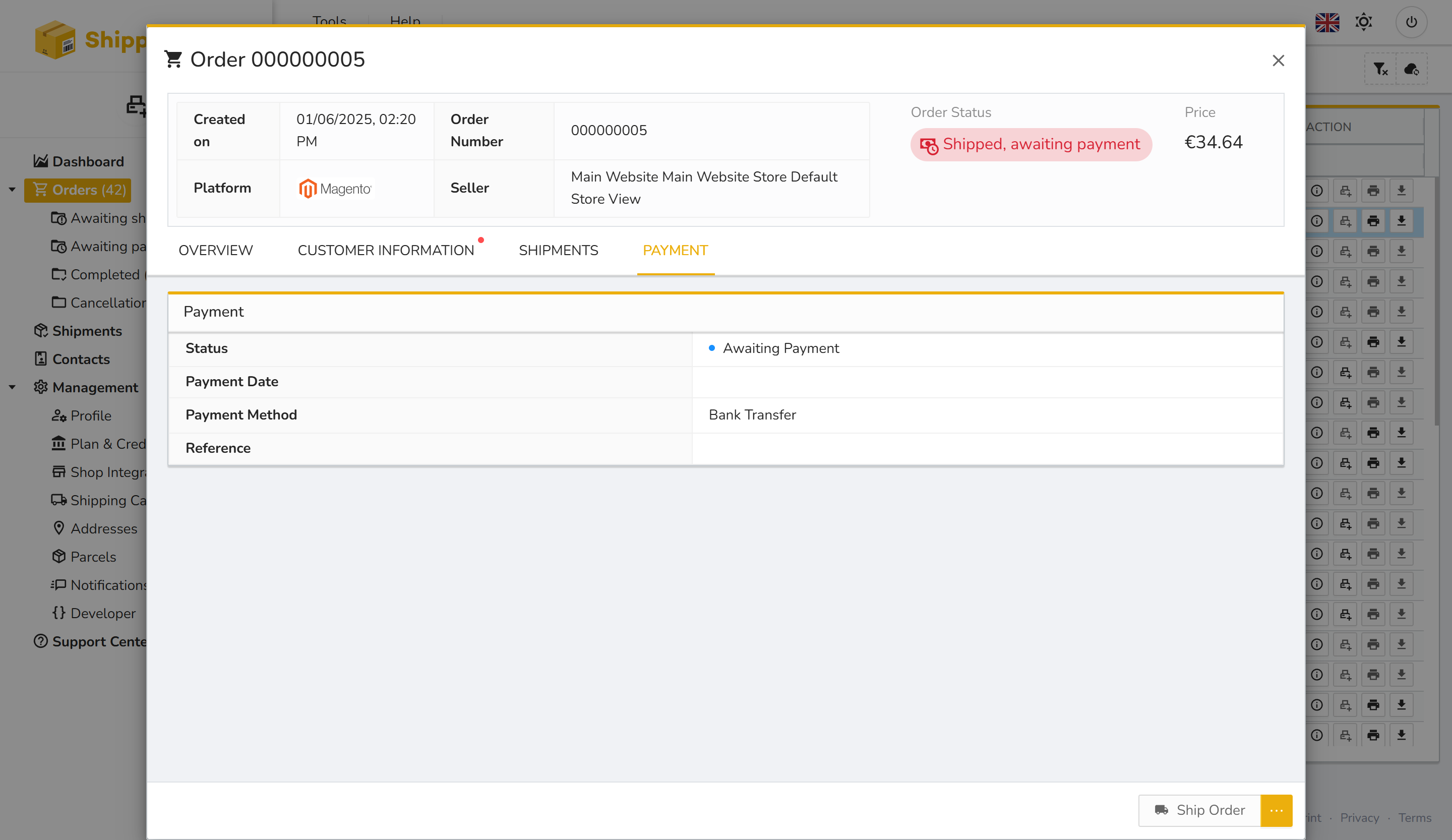
In the Payment tab, you’ll see:
- Payment Status (e.g. Awaiting Payment)
- Payment Date and time
- Payment Method (e.g. Bank Transfer, Cheque, Cash)
- Reference (depending on the system)
➡️ This information is especially important for accounting and traceability.
Status Indicators at a Glance
| Symbol / Color | Meaning |
|---|---|
| 🟡 Yellow | Awaiting shipment / Partial shipment / Awaiting payment |
| 🔴 Red | Canceled / Refunded / Shipped but not paid |
| 🟢 Green | Order completed (shipped & paid) |