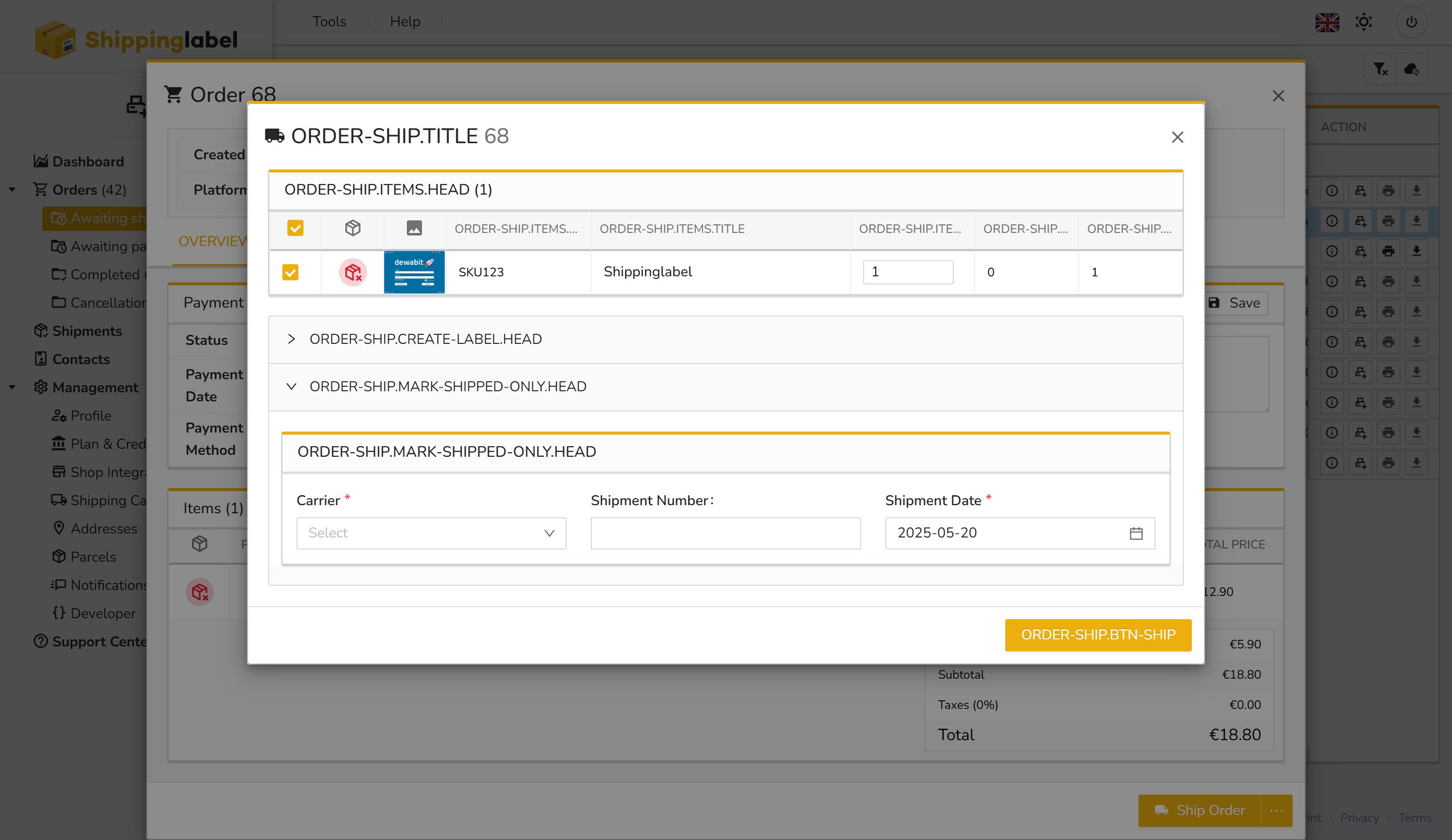
In the Awaiting Shipment section, you will find all orders that have already been paid but have not yet been shipped.
Here, you can review one or multiple orders, edit order details, and generate shipping labels.
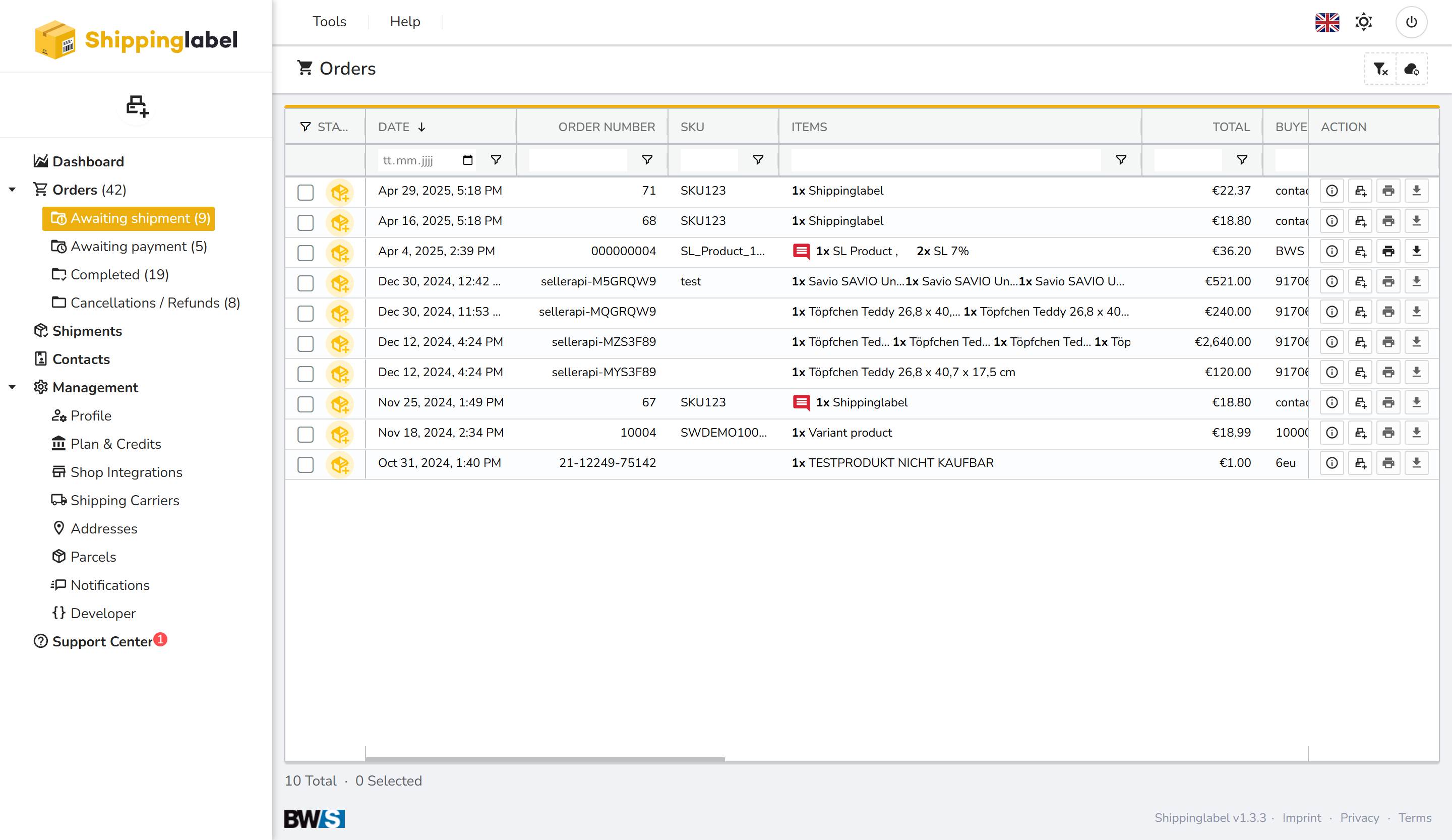
Actions in the Table
On the right-hand side of the table, you’ll find the following actions for each order:
- Show details
- Ship order
- Print label
- Download label
You can also right-click on a row to open additional options.
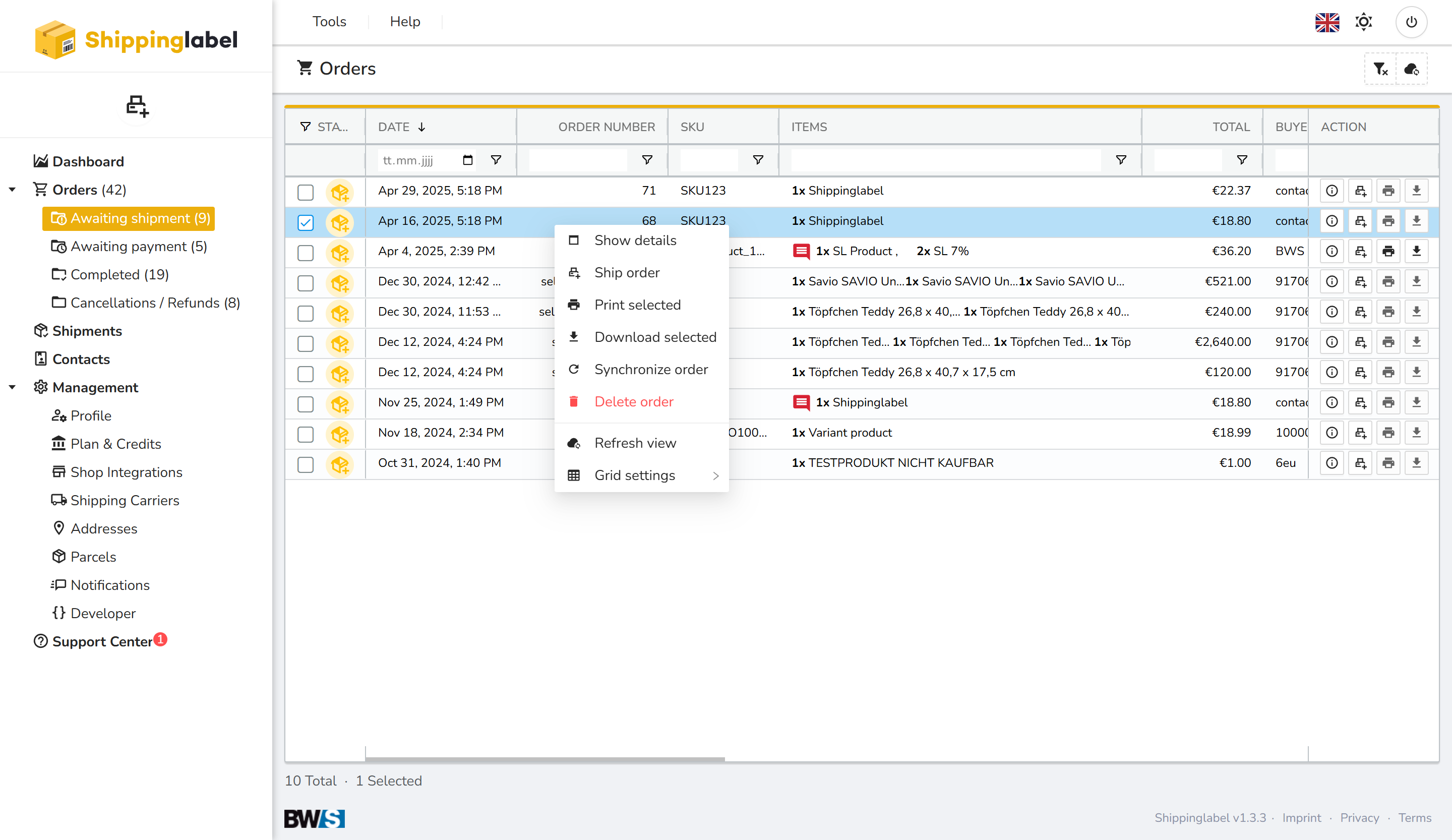
Viewing Order Details
Via the action menu, you can open the detailed view of an order.
This includes full information about the payment, shipping, and the ordered items.
➡️ If everything looks correct, click Ship Order to proceed.
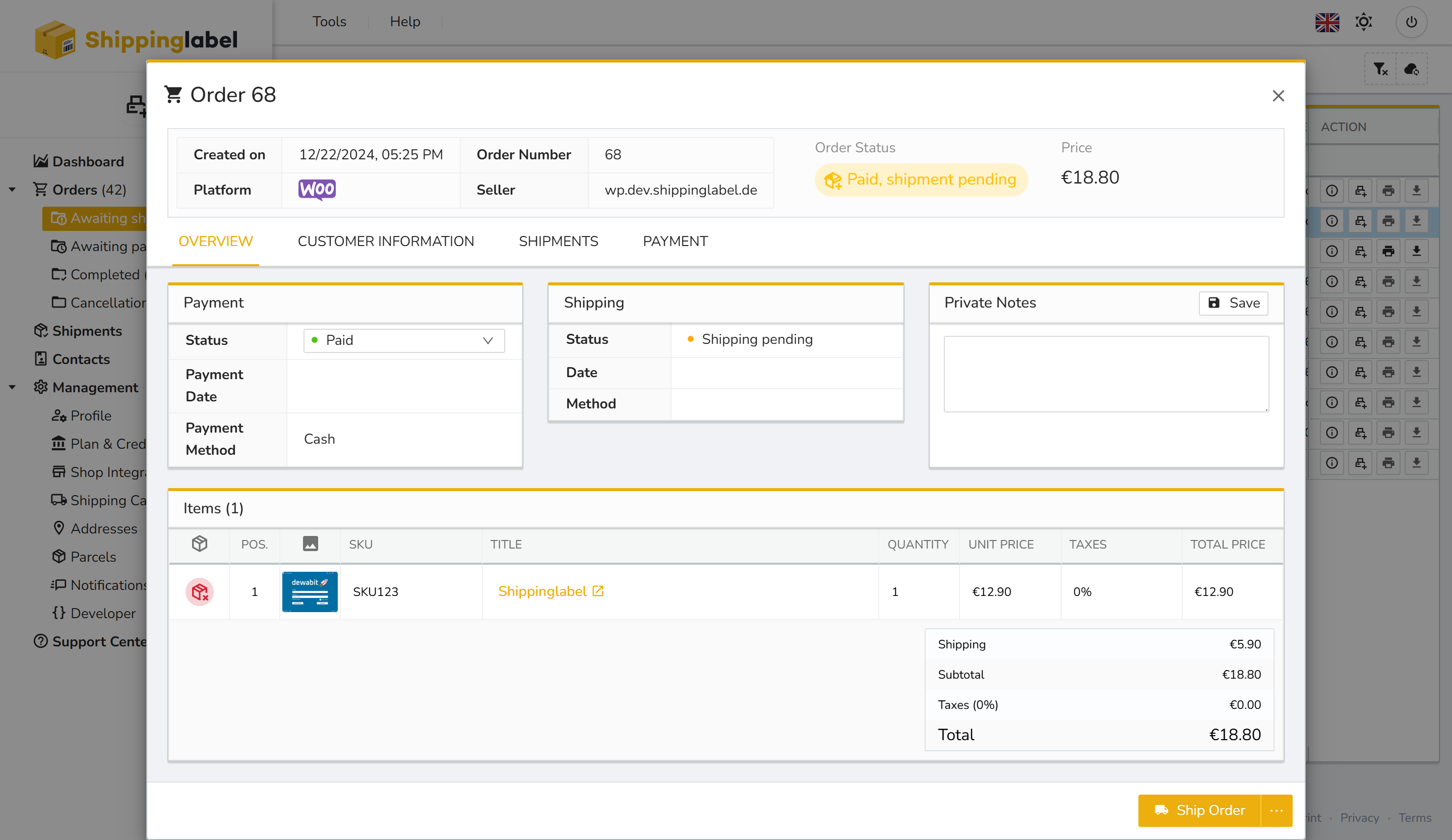
Preparing the Shipment
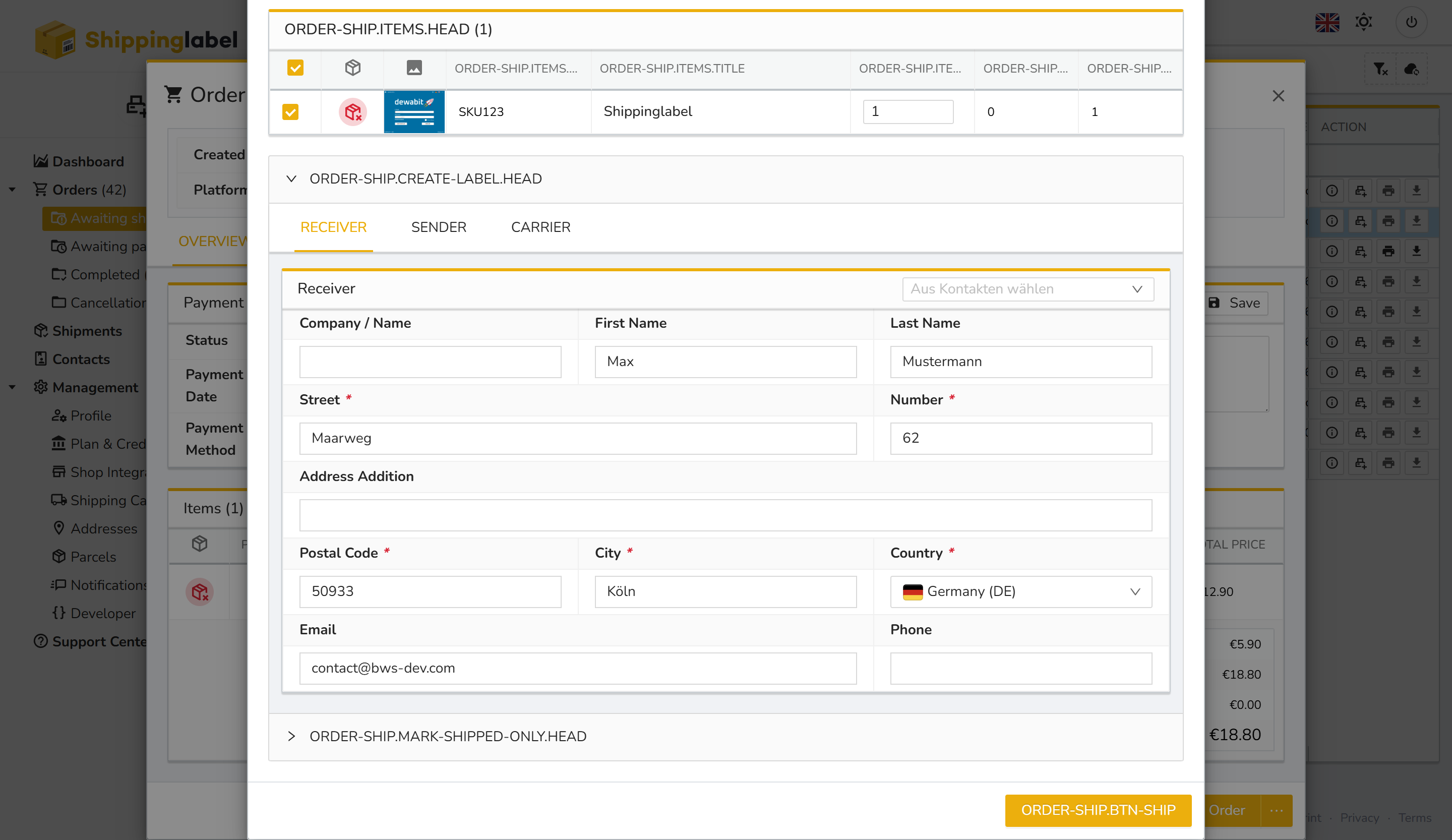
When you click Ship Order, a shipping dialog opens.
Here you provide the following information:
- Receiver address
- Sender details
- Shipping carrier
The items are preselected based on the order. You can adjust the quantity if needed.
Then click Ship Order to generate the label and finalize shipping.
Mark as Shipped Without Label
If no shipping label is needed (e.g. for external fulfillment), you can mark the order as shipped manually.
At the bottom of the dialog, expand the section Mark as shipped only, then enter:
- Carrier (required)
- Shipment number (optional)
- Shipment date
Finally, click Ship selected items to update the order’s status.