With the Notifications feature, you can automatically send shipping confirmation emails to your customers as soon as an order is dispatched. This keeps your communication professional and up-to-date without any manual effort.
What can be configured?
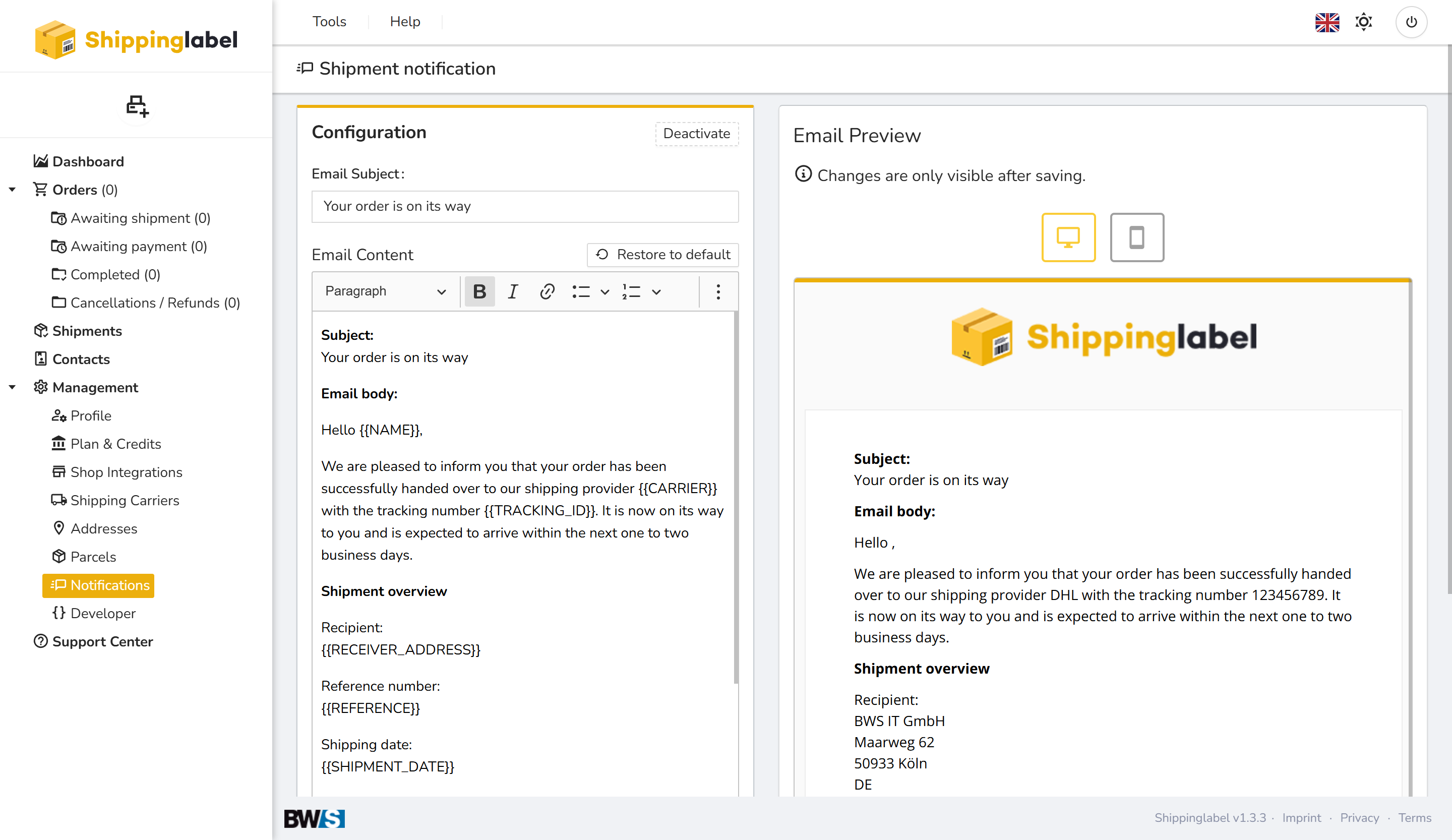
- Email Subject
This is the title that appears in the customer's inbox. Make sure it is clear and meaningful, e.g., "Your order is on the way". - Email Content
Here you can compose the main message. The text is fully customizable and supports dynamic placeholders (variables), which will be automatically replaced with the correct shipment data when sent.
Supported placeholders
| Placeholder | Replaced by |
|---|---|
{{NAME}} | Recipient's name |
{{CARRIER}} | Shipping carrier (e.g., DHL, DPD) |
{{TRACKING_ID}} | Tracking number |
{{RECEIVER_ADDRESS}} | Recipient's full address |
{{REFERENCE}} | Shipment or order reference |
{{SHIPMENT_DATE}} | Date of shipment |
{{BTN_TRACKING_ID}} | Tracking link button |
Reply-To Address, Logo, and Variables
In this section, you can customize key elements for branding and personalization:
- Reply-To Address
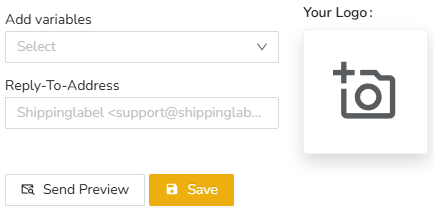
This is the email address customers will reply to. It is prefilled with the Shippinglabel support address and cannot be changed. - Your Logo
Upload your company logo using the camera icon. The logo will appear in the emails sent to your customers. - Add Variables
Use the dropdown to insert placeholders into your message. These will be filled with live data during email delivery.
Additional features
- Send Preview
Click this button to receive a test email and check the final appearance before activating changes. - Save
Don’t forget to save your configuration. Unsaved changes will not be applied.