Shippinglabel allows seamless integration with Magento to automatically import and process orders. This guide walks you through the entire setup process to connect your Magento shop with Shippinglabel.
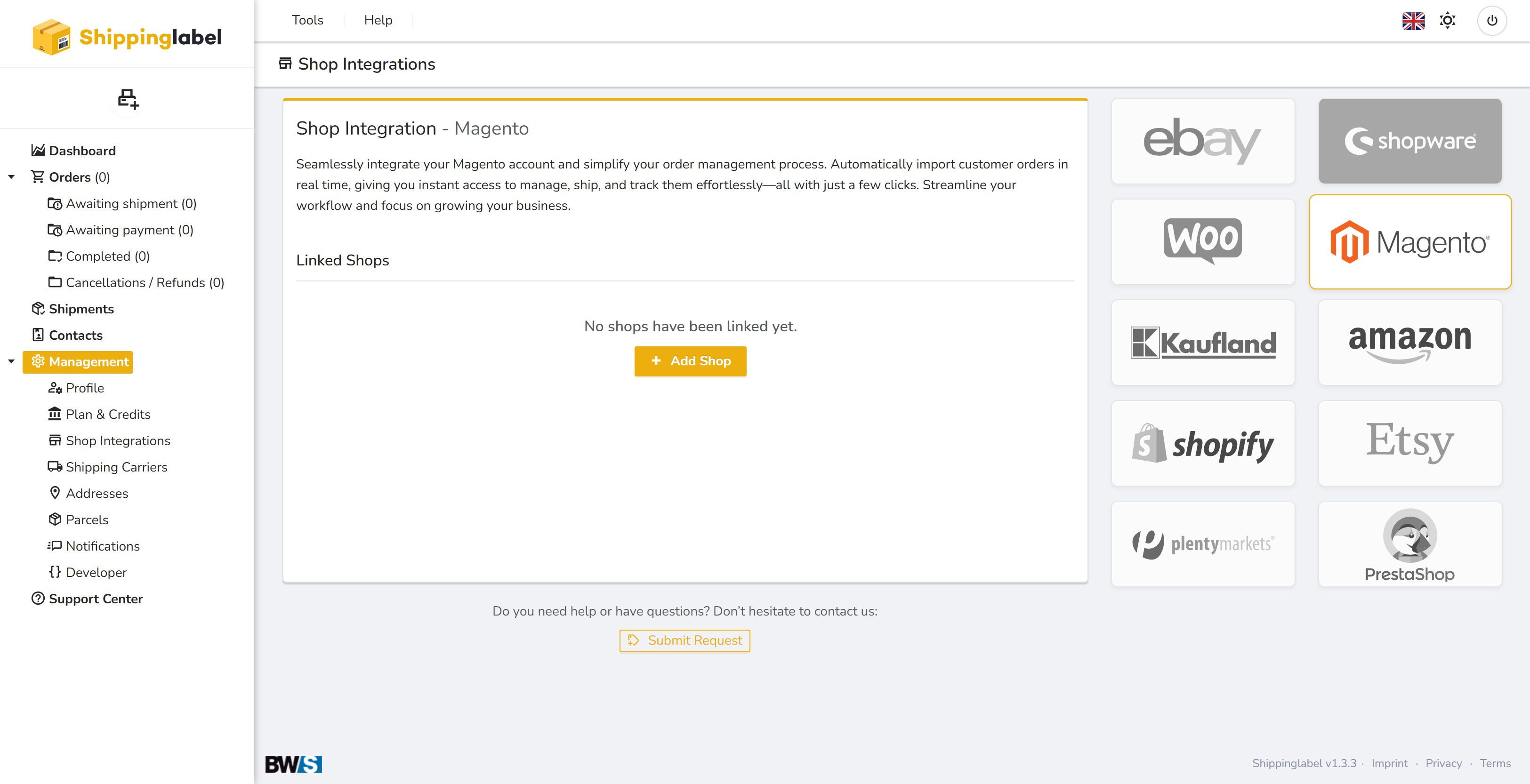
Requirements: Generate Access Token in Magento
To connect your shop, you’ll need a valid Access Token. This token is generated through an integration setup in your Magento admin backend.
Step-by-step: Create the Integration in Magento
1. Log in to the Magento backend
Access the admin panel of your Magento shop.
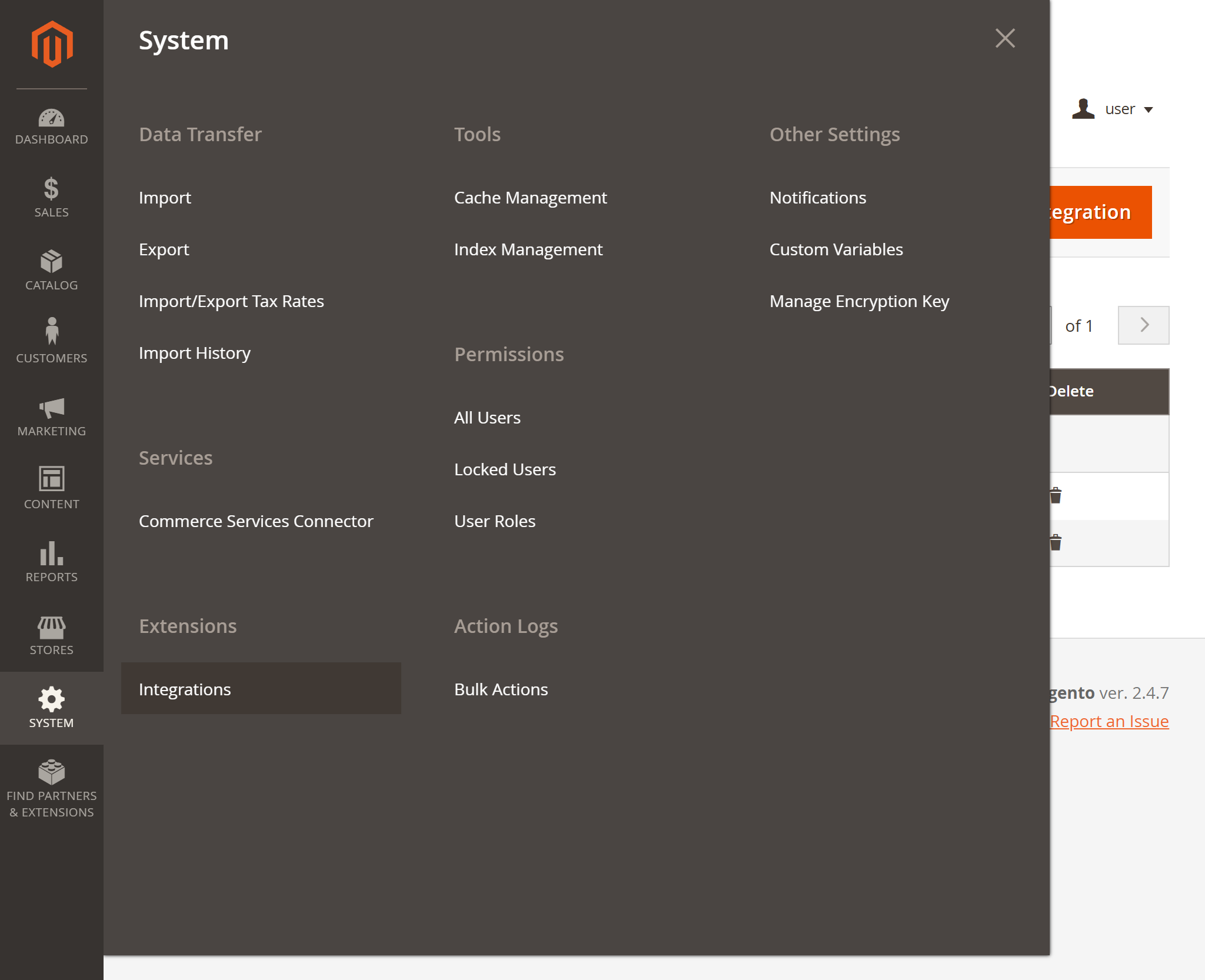
2. Navigate to “Integrations”
Go to System → Extensions → Integrations.
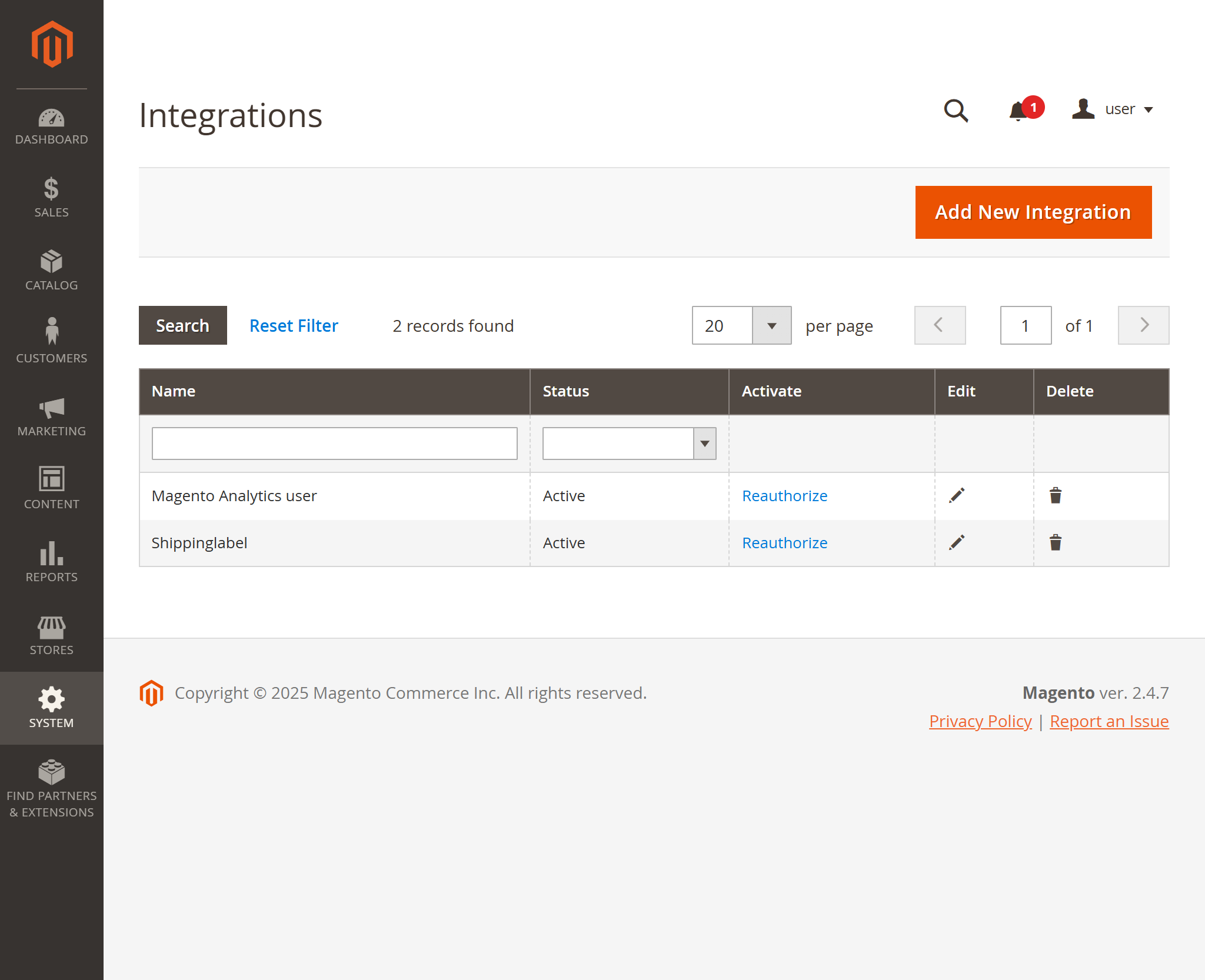
3. Add a new integration
Click on Add New Integration.
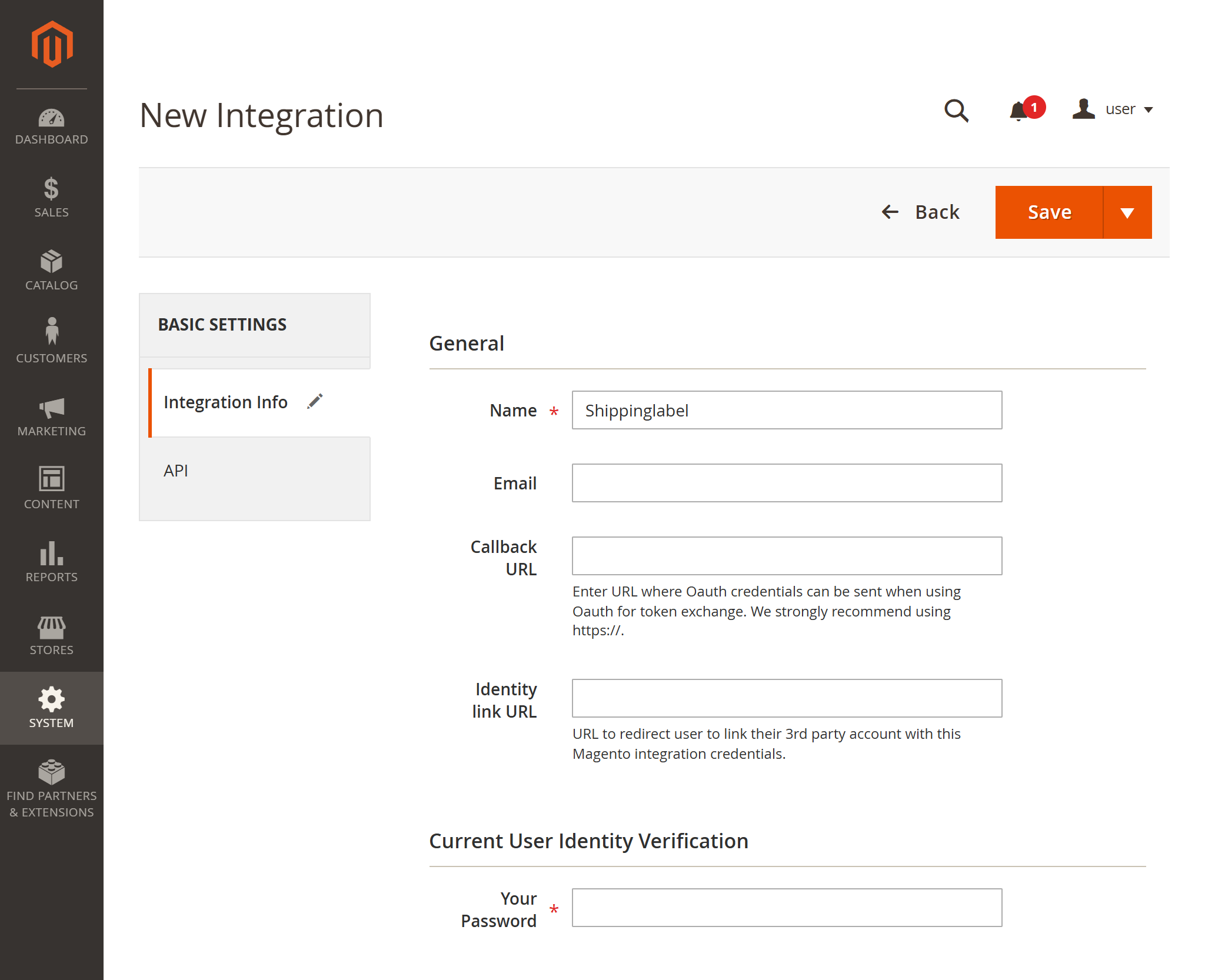
- Assign a name (e.g.,
Shippinglabel) - Enter your admin password to confirm
4. Set API permissions
- Go to the API tab
- Set Resource Access to
Custom - Grant access to all required sections, especially:
- Sales → Operations → Orders → Actions
- (incl. Create, View, Ship, Invoice, etc.)
Make sure to include all permissions needed for order processing.
Click Save in the top right corner.
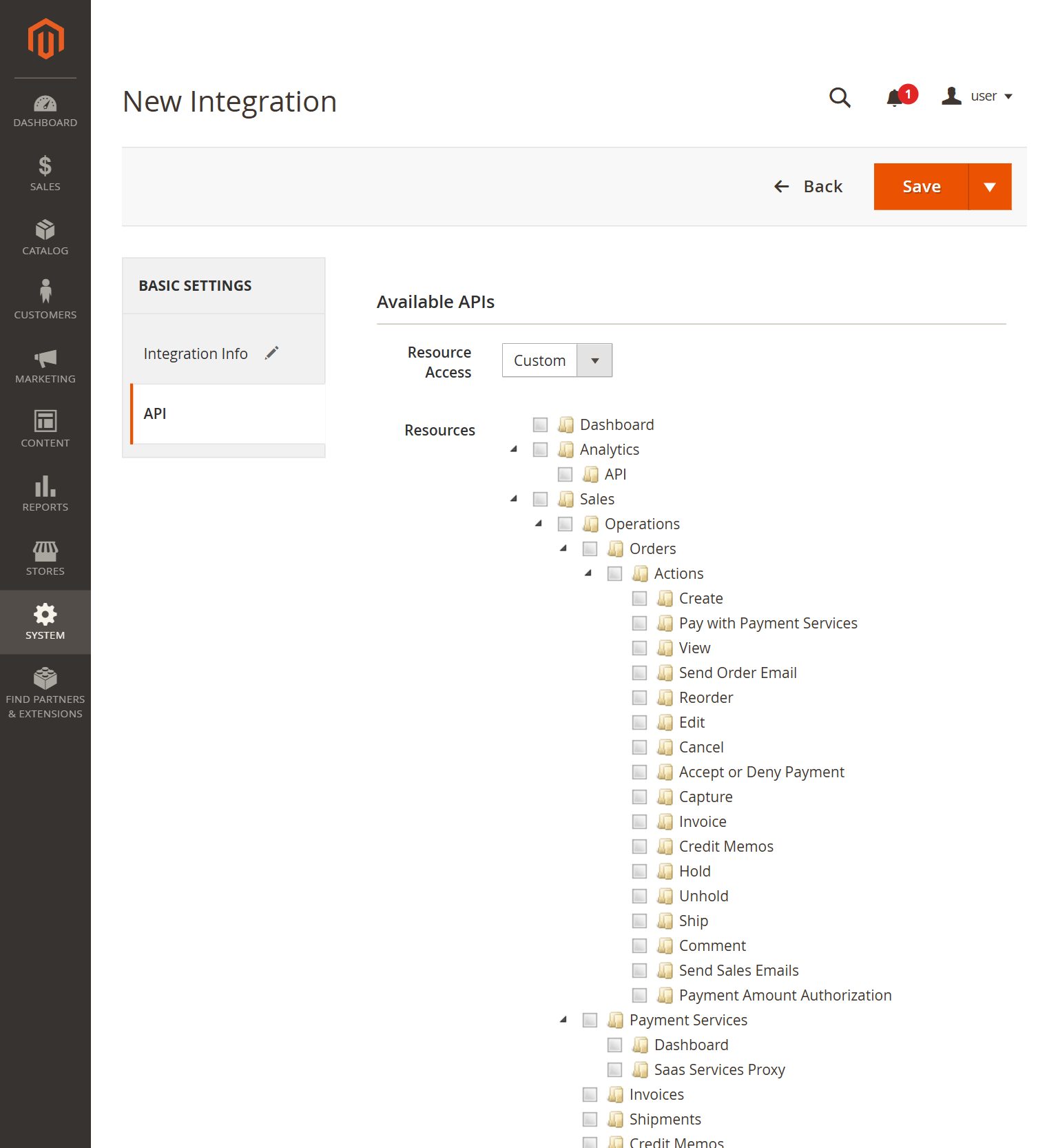
5. Activate the integration
- In the Integrations list, find the entry named
Shippinglabel - Click Activate
- Confirm with Allow when prompted
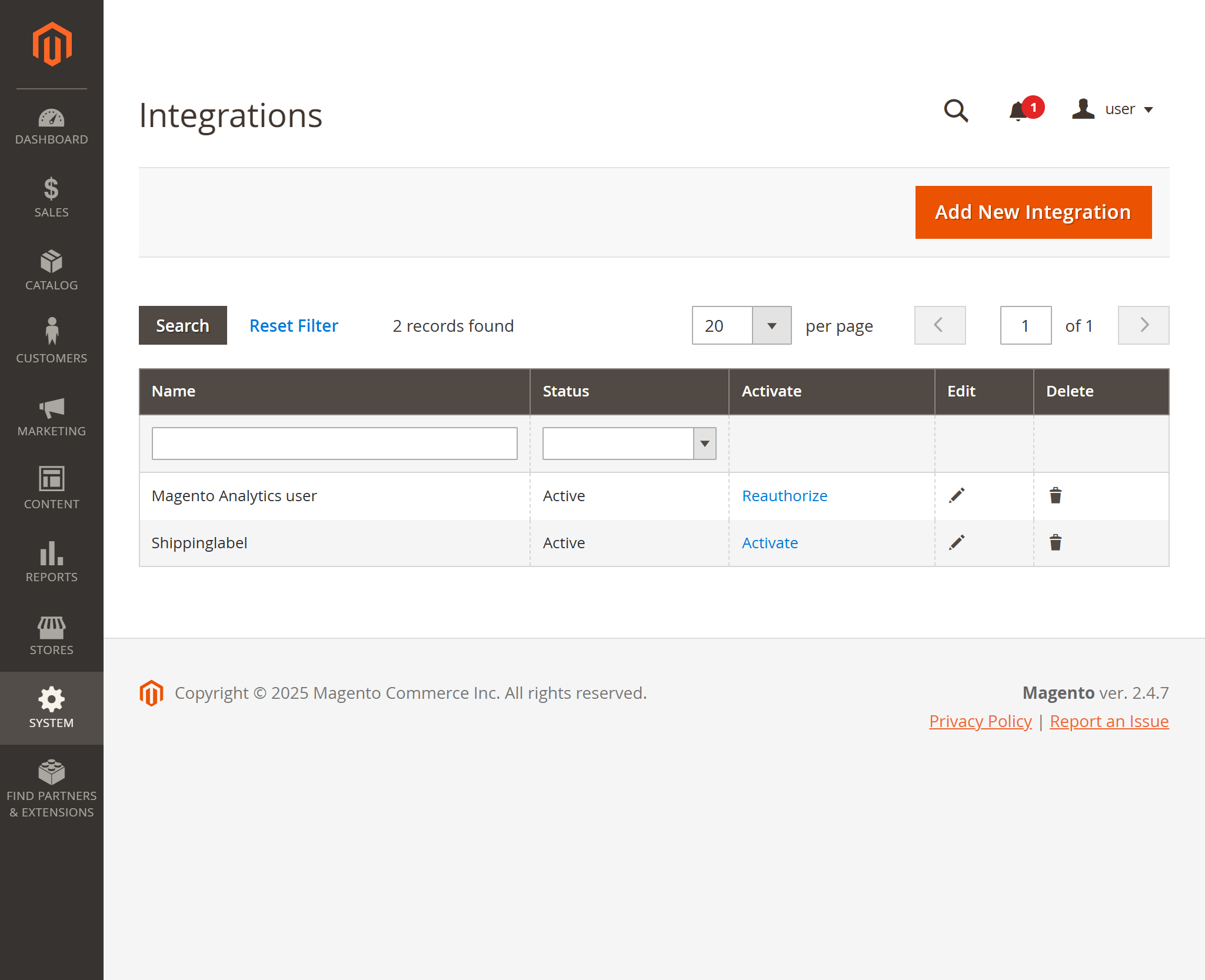
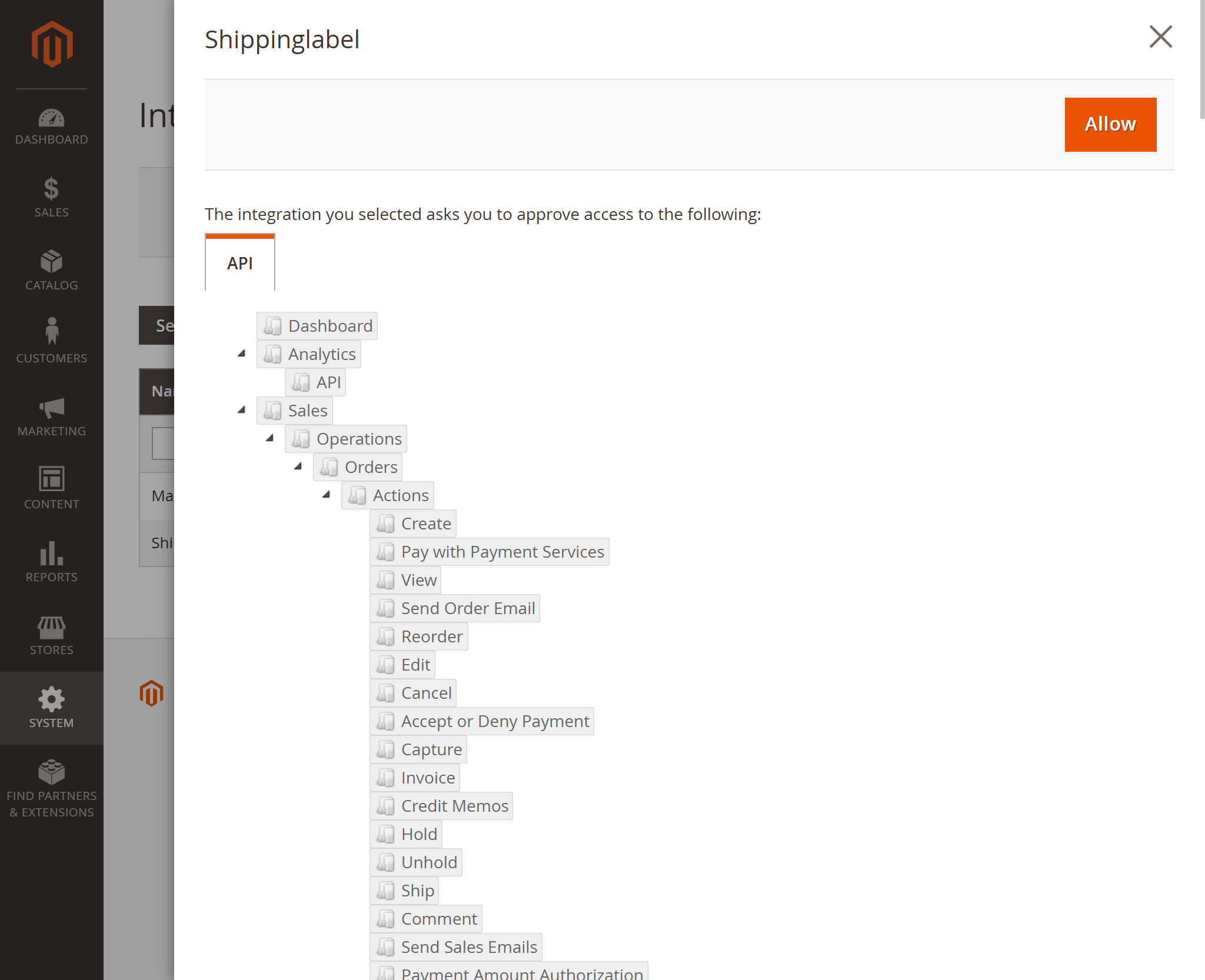
6. Copy the Access Token
After activation, the system will display the credentials:
- Consumer Key
- Consumer Secret
- Access Token
- Access Token Secret
Only the Access Token is needed for the connection in Shippinglabel. Copy and save it securely.
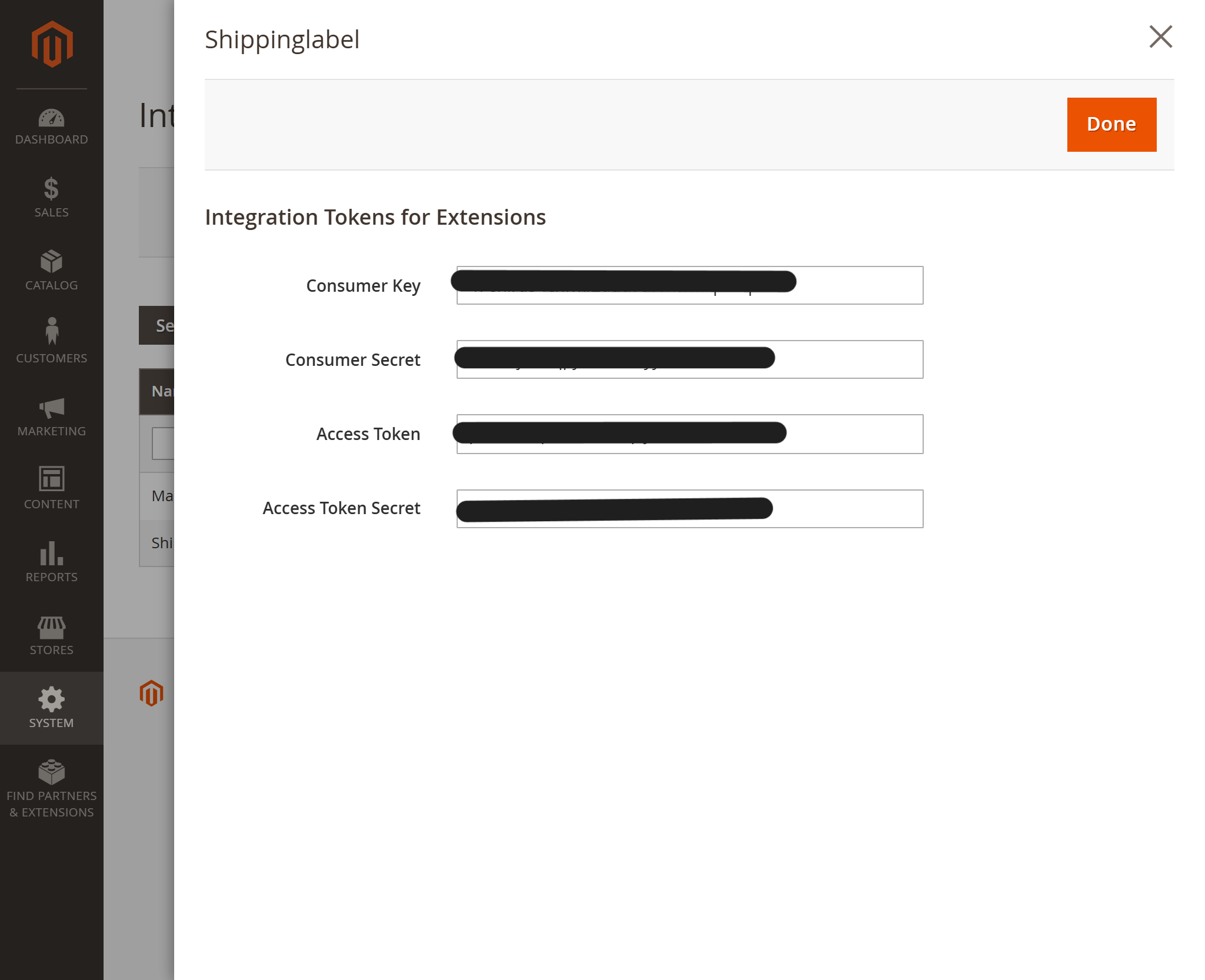
Connect Magento in Shippinglabel
1. Open the Shop Integration section
In Shippinglabel, go to Management → Shop Integrations.
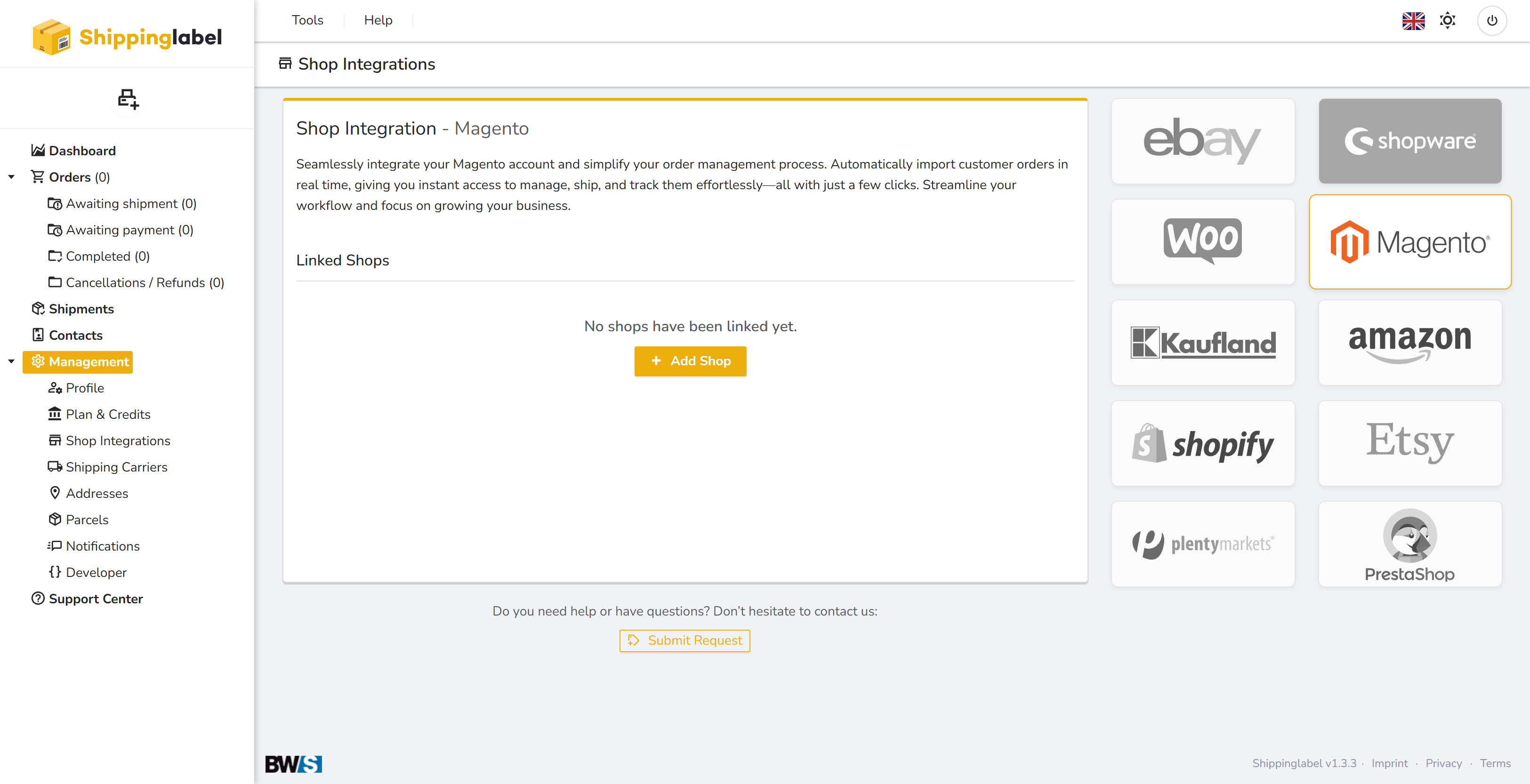
2. Start the connection
Find the Magento logo and click Add Shop.
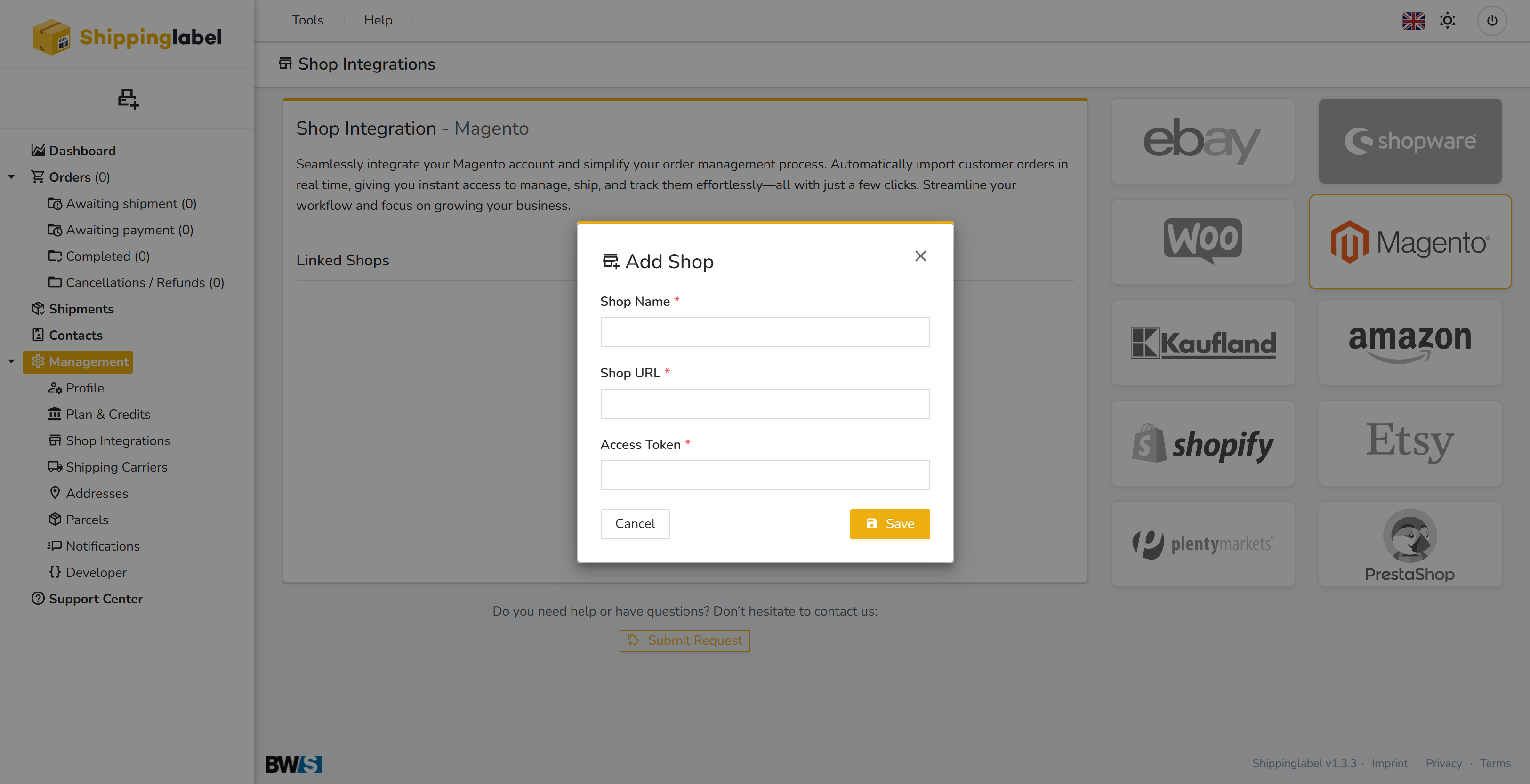
3. Enter connection details
Fill in the following fields:
Shop Name: A freely chosen name for your Magento shop (e.g., Magento Shop)
Shop URL: The origin URL of your Magento shop – without /admin or /index.php
Access Token: The token you generated in your Magento backend
Example:
Shop URL: https://www.myshop.com
Access Token: 1hdlsn4kdwjh7nnmdwslkc85
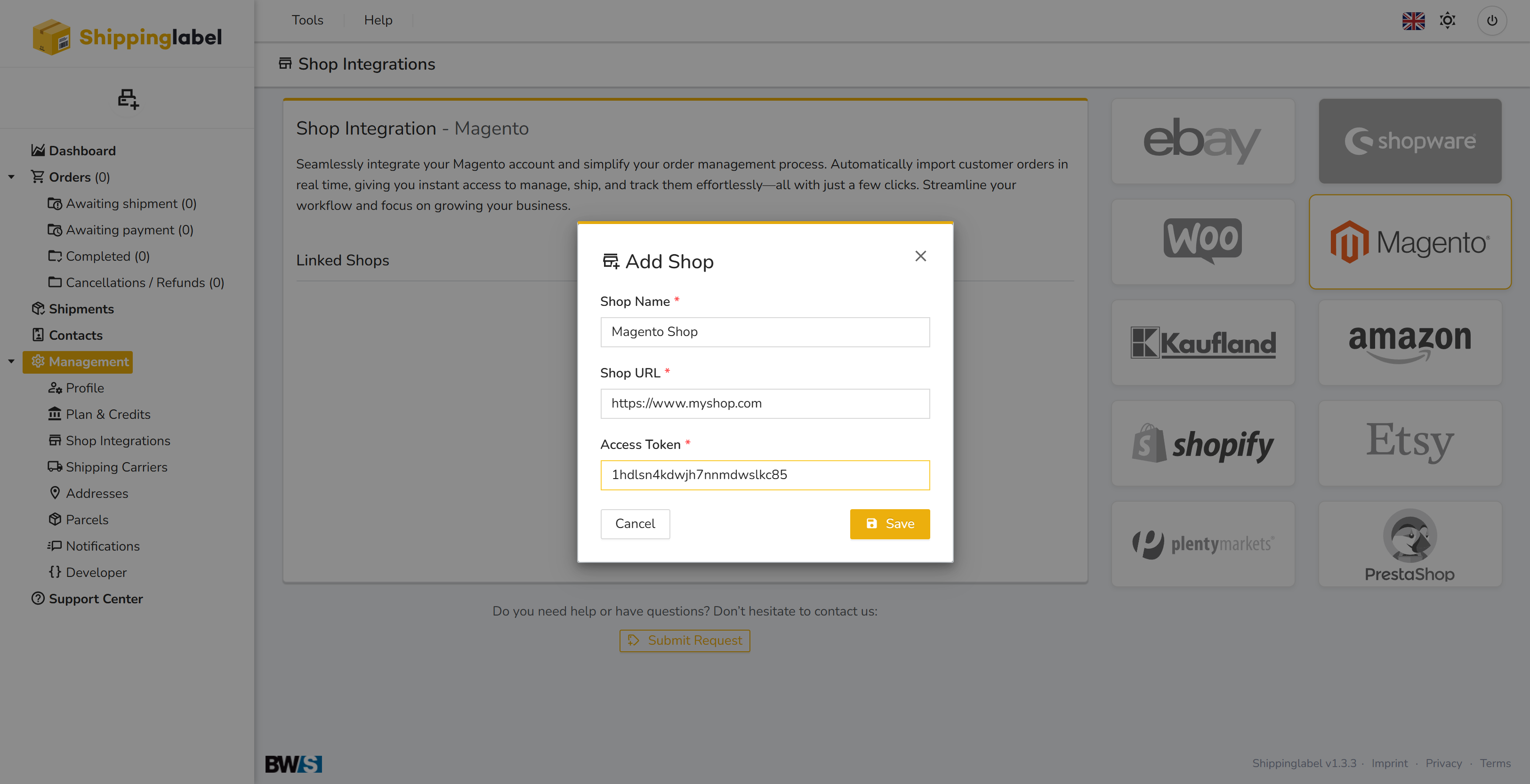
Click Save to complete the setup.
Manage Your Linked Magento Shop (after setup)
Once your Magento shop is connected and listed under “Linked Shops”, you can manage the connection by clicking the Actions dropdown.
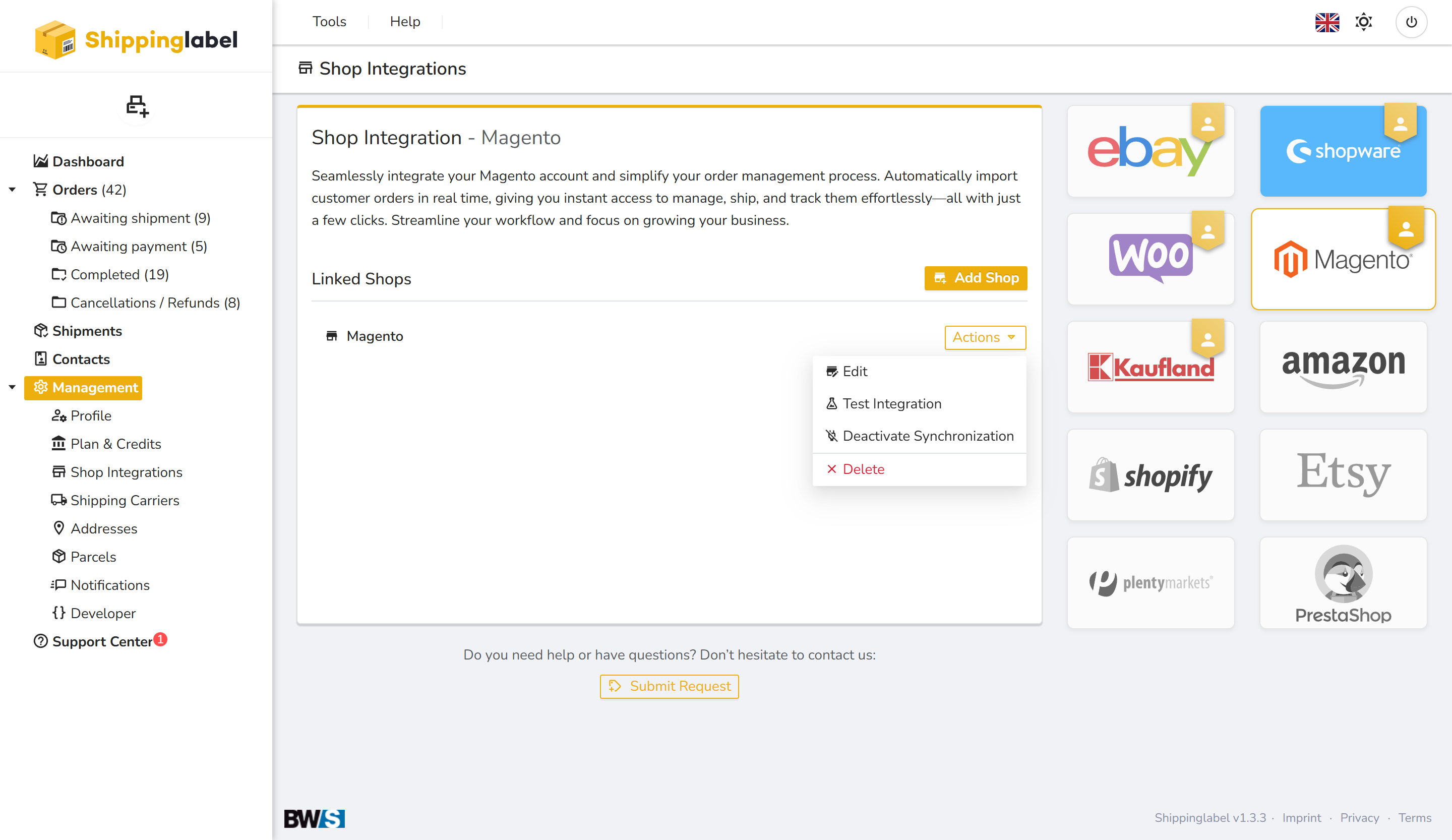
Available Options:
- Edit
Change the shop name, shop URL, or access token later if needed. - Test Integration
Check if the connection to your Magento shop is still active and valid. If the test fails, you may need to update the access token. - Deactivate Synchronization
Temporarily stop automatic order import from this shop. The connection remains stored and can be reactivated later. - Delete
Permanently remove the shop integration. This action cannot be undone.