Shippinglabel allows seamless integration with your WooCommerce shop to efficiently import orders and optimize shipping workflows. This guide walks you through the setup process step by step.
Prepare WooCommerce for the Integration
Before connecting your WooCommerce shop with Shippinglabel, you need to create a REST API key. This grants Shippinglabel secure access to your shop data.
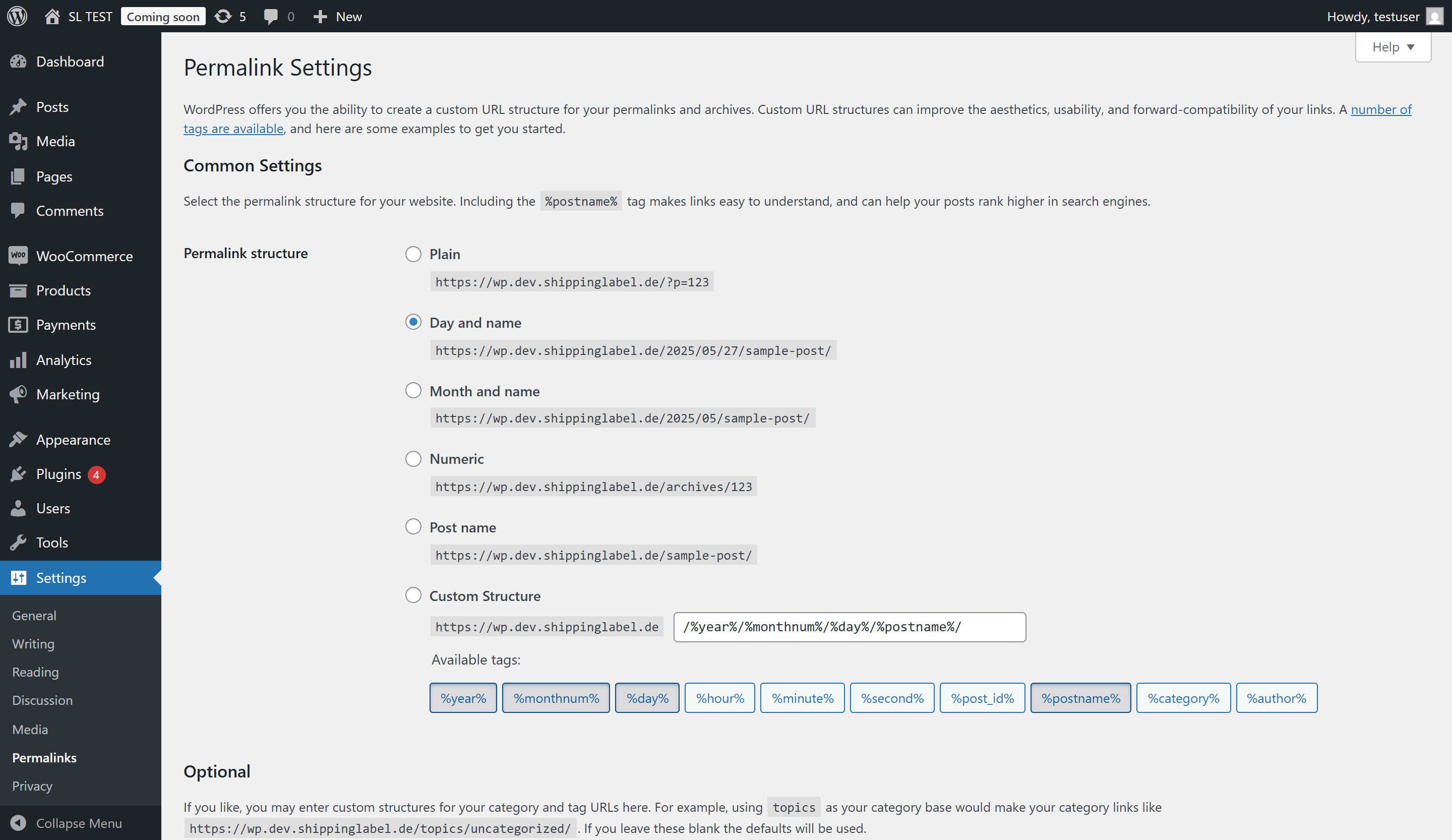
Step 1: Change the permalink structure
- Open the WordPress admin panel of your WooCommerce website.
- Go to Settings → Permalinks.
- Choose any structure other than “Plain”, such as “Post name”.
- Scroll down and click Save Changes.
Step 2: Generate REST API Keys
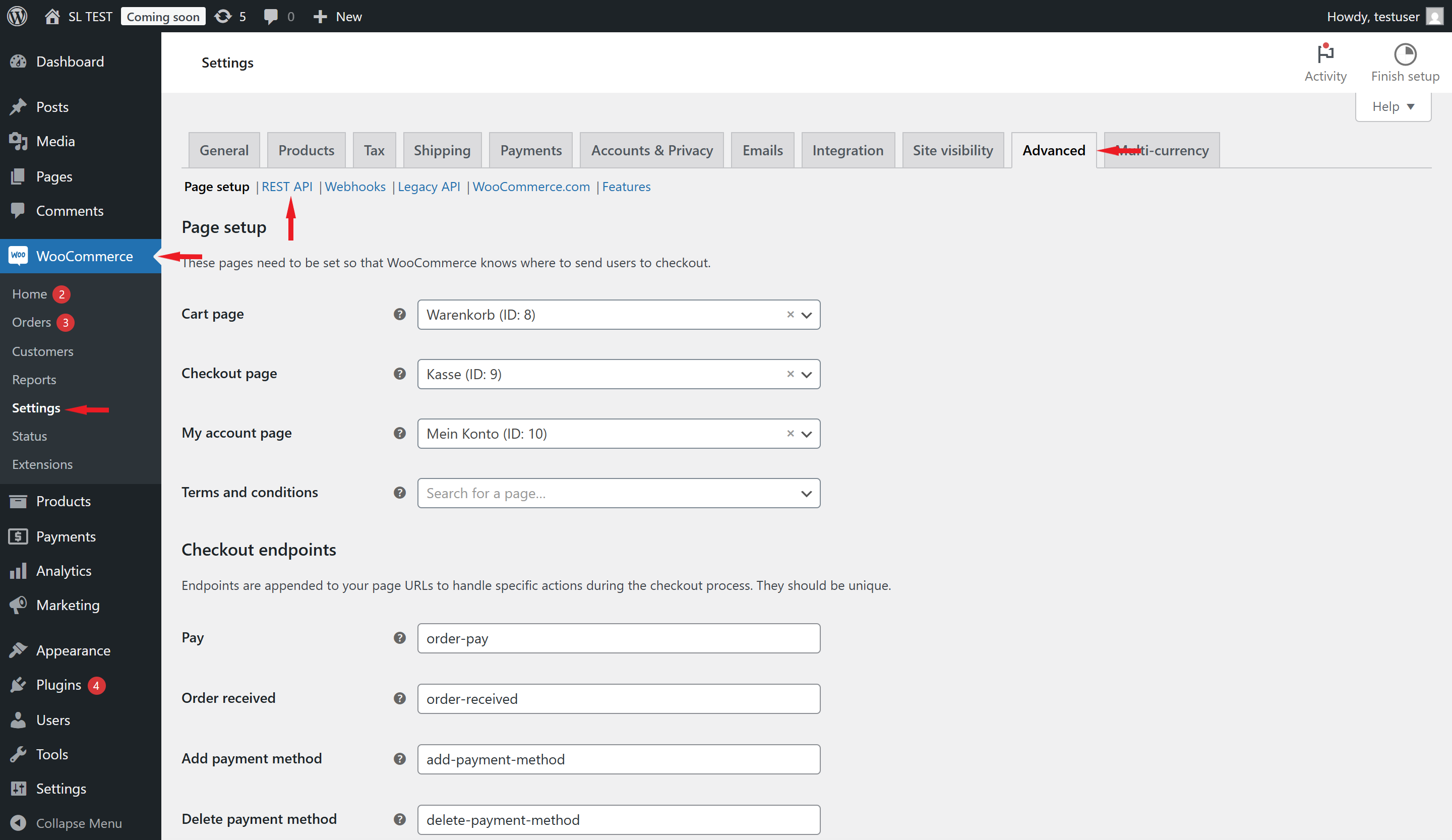
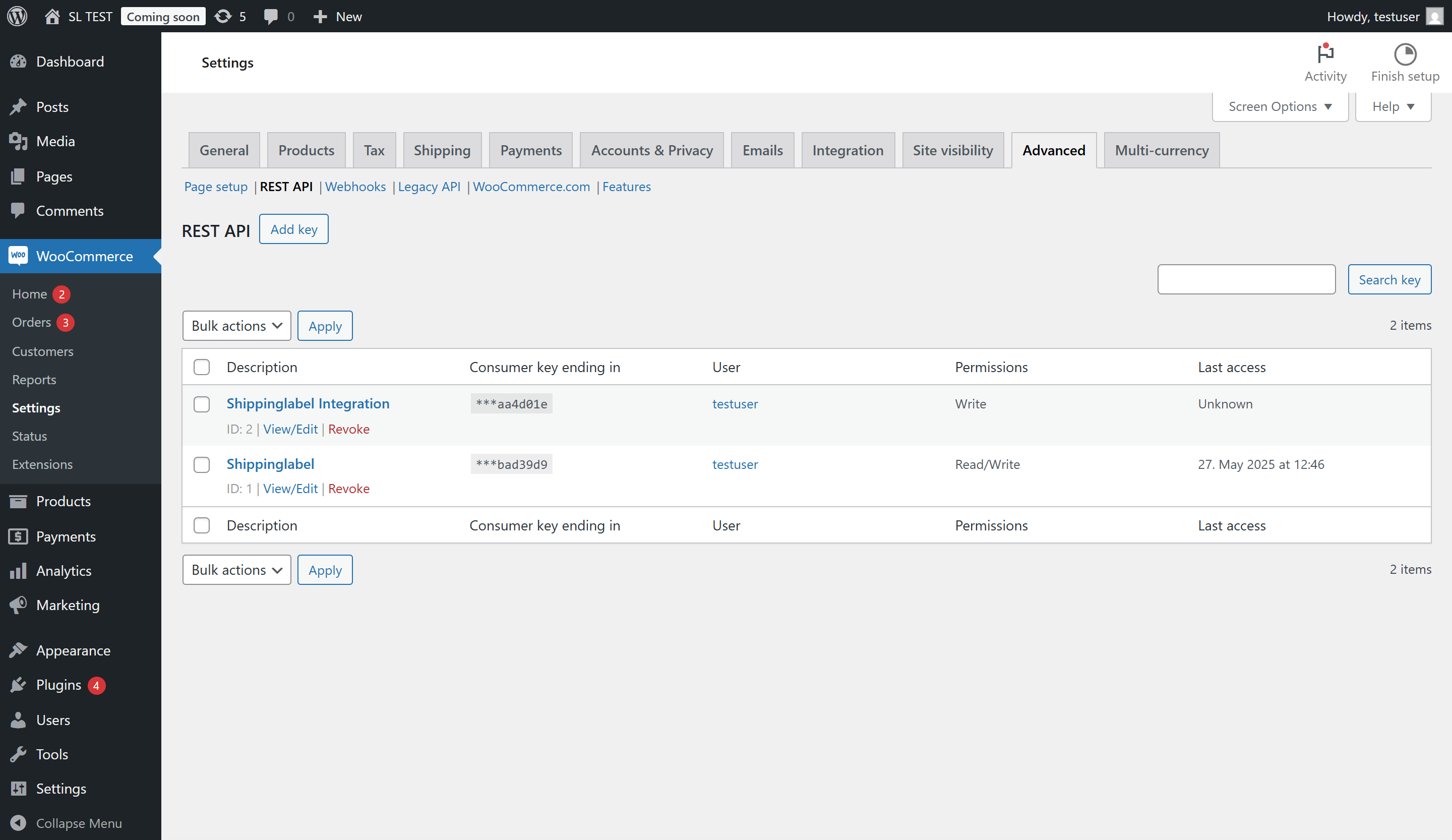
- Navigate to WooCommerce → Settings → Advanced → REST API
- Click the button Add key
- Fill in the form as follows:
- Description: e.g.,
Shippinglabel Integration - User: Select a user with admin rights
- Permissions: Choose
Read/Write
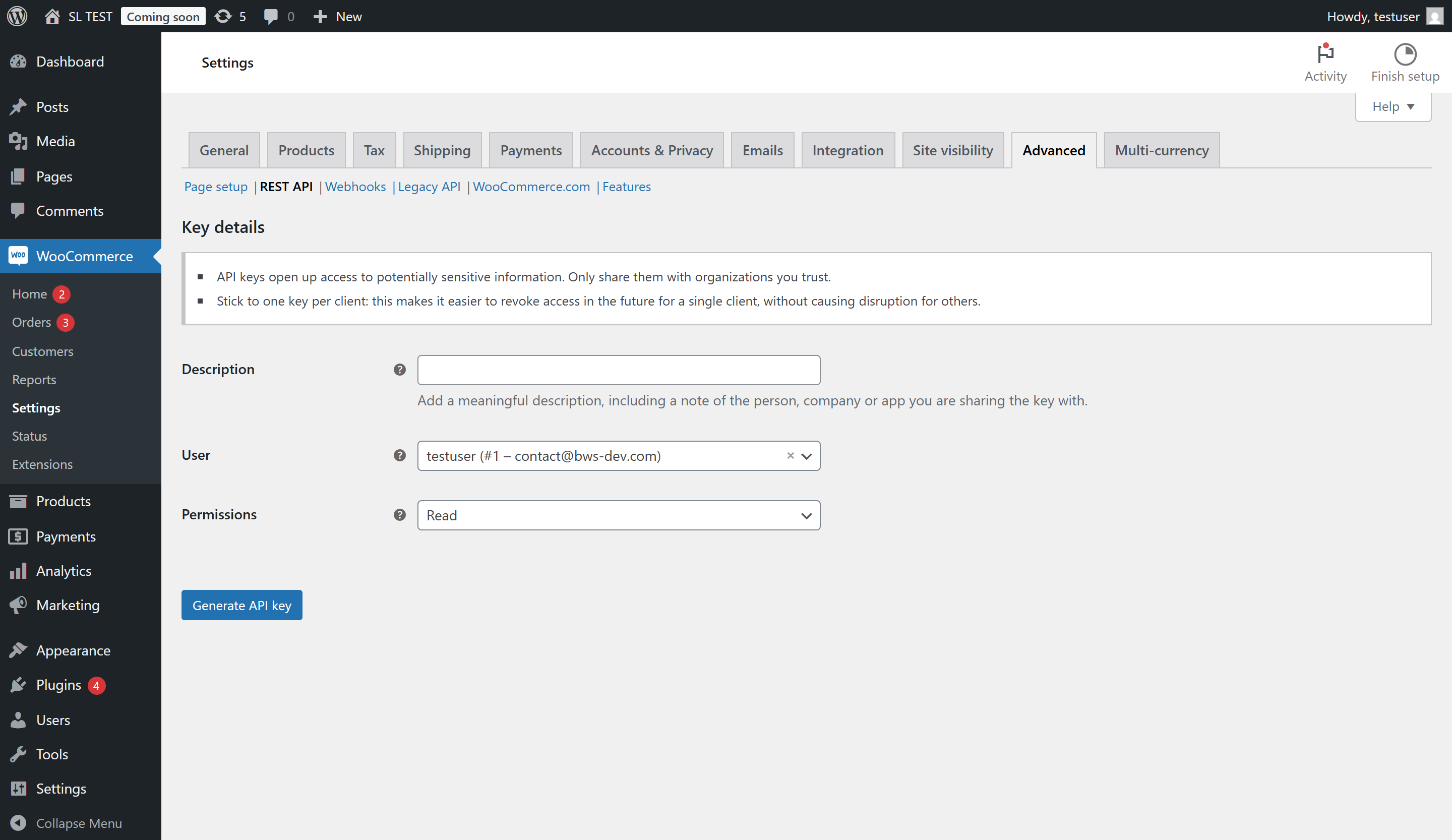
2. Click Generate API key
Copy the following values:
- Consumer Key
- Consumer Secret
These will be used in Shippinglabel.
Connect WooCommerce in Shippinglabel
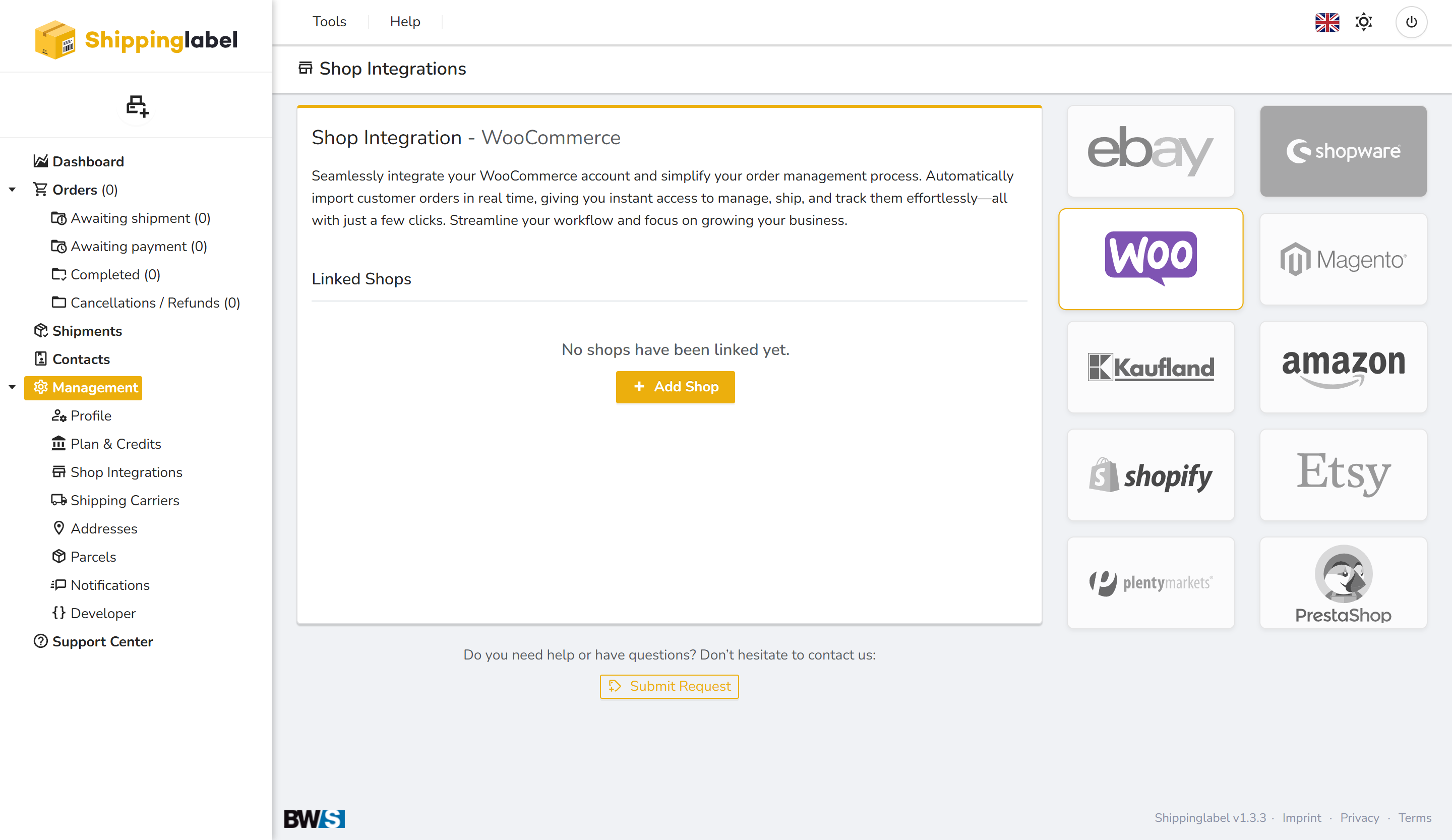
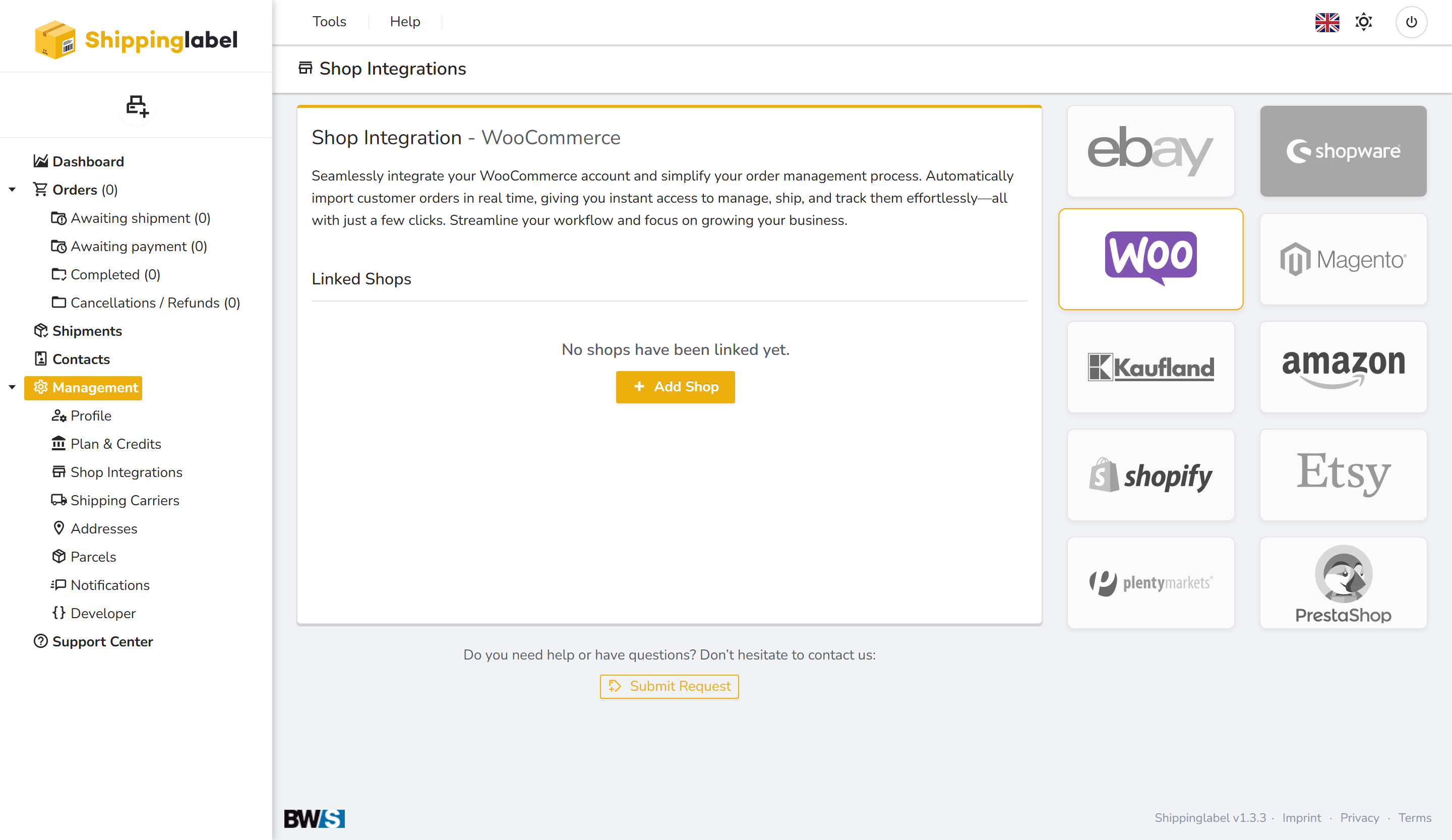
1. Open the Shop Integration section
Log in to your Shippinglabel account.
Go to Management → Shop Integrations
2. Add WooCommerce as a shop system
Click the WooCommerce tile.
Then click Add Shop
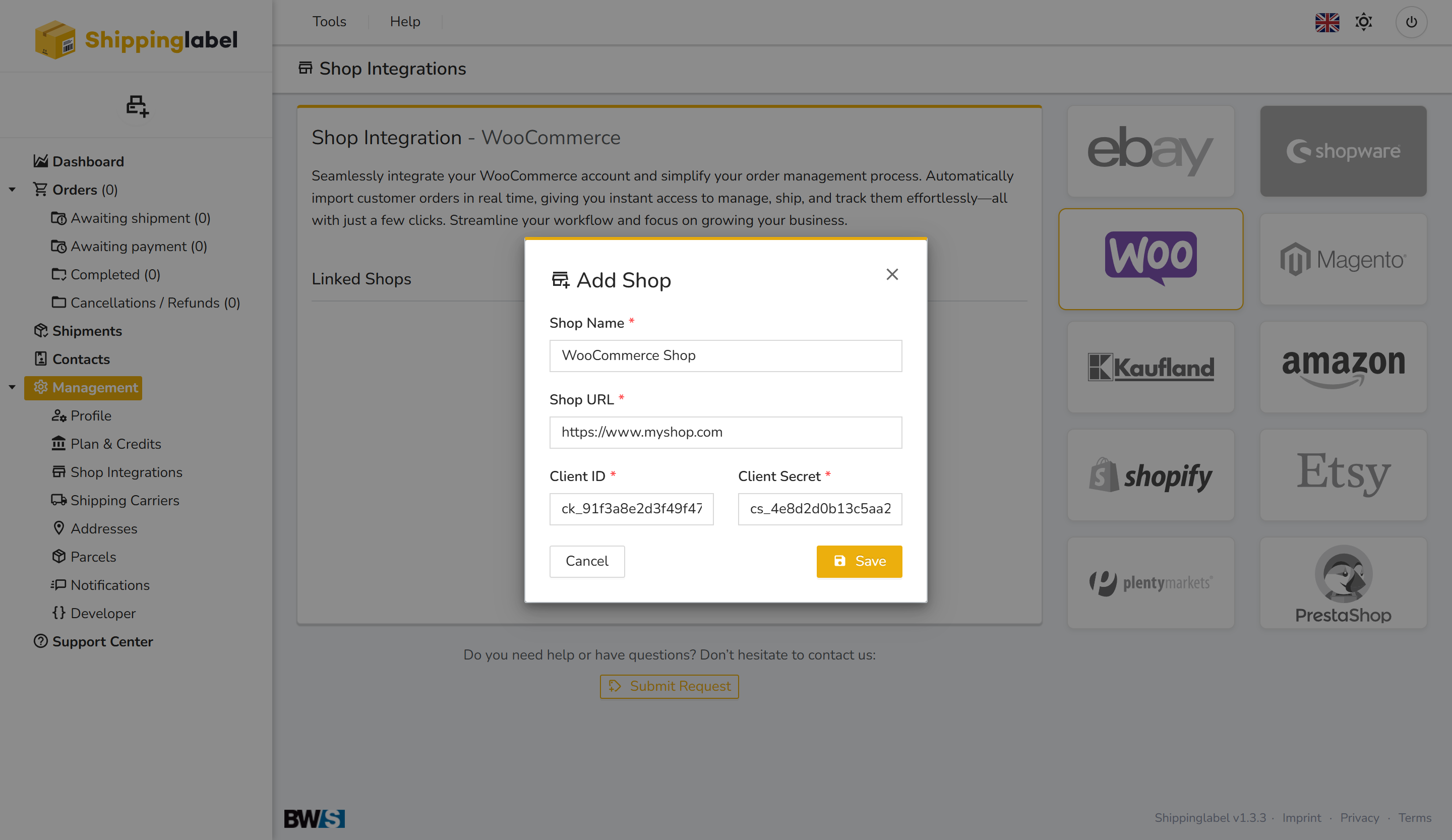
3. Enter your connection details
| Field | Description |
|---|---|
| Shop Name | Any name (e.g., “My WooCommerce Shop”) |
| Shop URL | The full origin URL, without any path like /admin or /index.php |
| Client ID | Paste your Consumer Key from WooCommerce |
| Client Secret | Paste your Consumer Secret from WooCommerce |
Example URL: https://www.myshop.com
4. Save the connection
Review all fields and click Save.
If the data is correct, the connection will become active. Orders will now be imported depending on your preferences.
If the data is correct, the connection will become active. Orders will now be imported depending on your preferences.
Manage Your Connected WooCommerce Shop
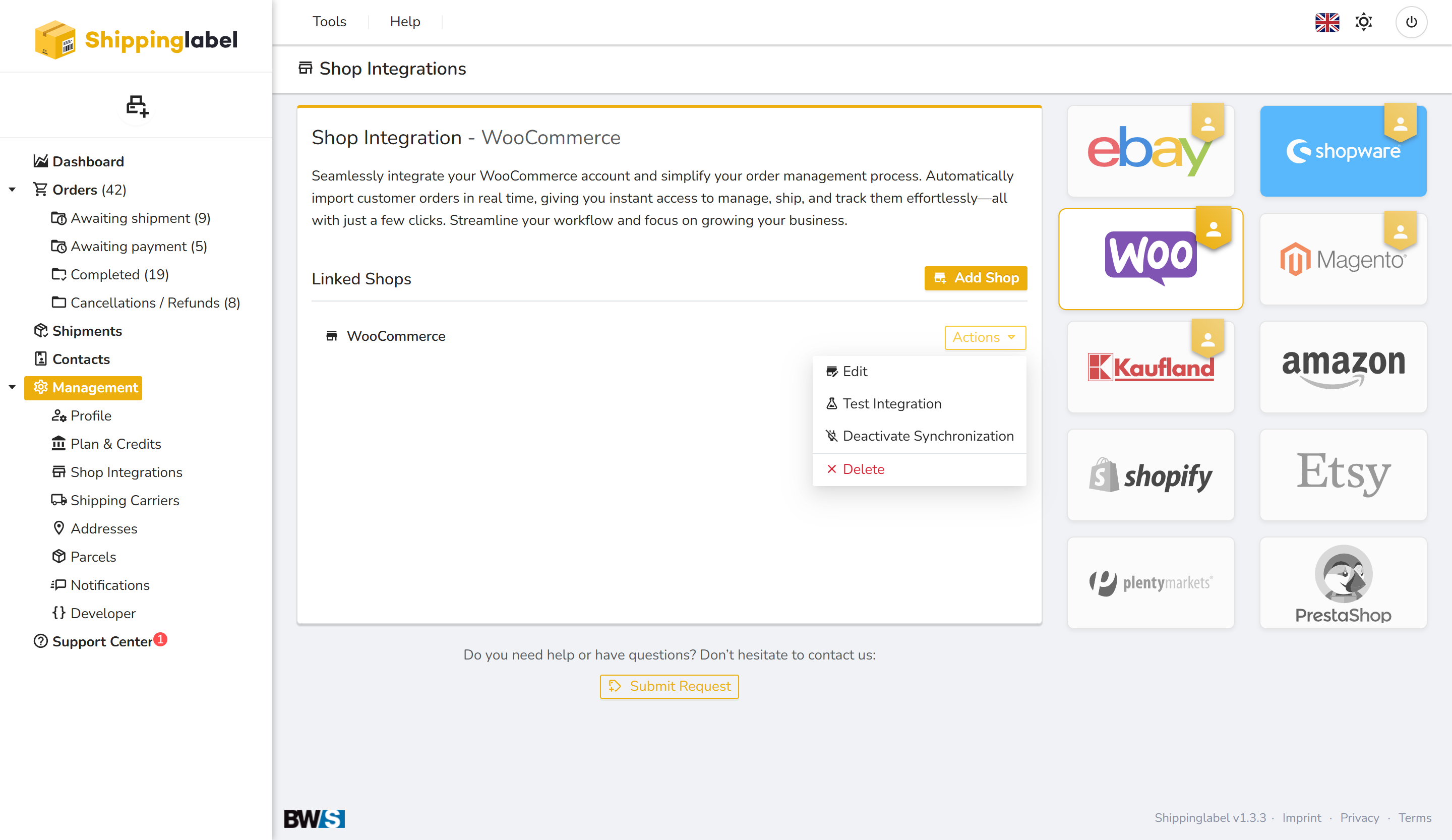
Once the WooCommerce shop is successfully connected, it will appear under Linked Shops in the Shop Integrations section. To manage the integration, click on the Actions button next to the shop.
Available options:
- Edit
Update the shop name, URL, Client ID, or Client Secret at any time. - Test Integration
Check whether the current connection is still active and functioning properly. If the test fails, you may need to regenerate and re-enter the API keys. - Deactivate Synchronization
Temporarily pause order import from this shop. The connection remains stored and can be reactivated at any time. - Delete
Permanently remove the shop connection from Shippinglabel. This action cannot be undone.