With Shippinglabel, you can directly create shipping labels and handle shipments using your DHL Business Customer account. To do so, you need to connect your account credentials from the DHL business portal.
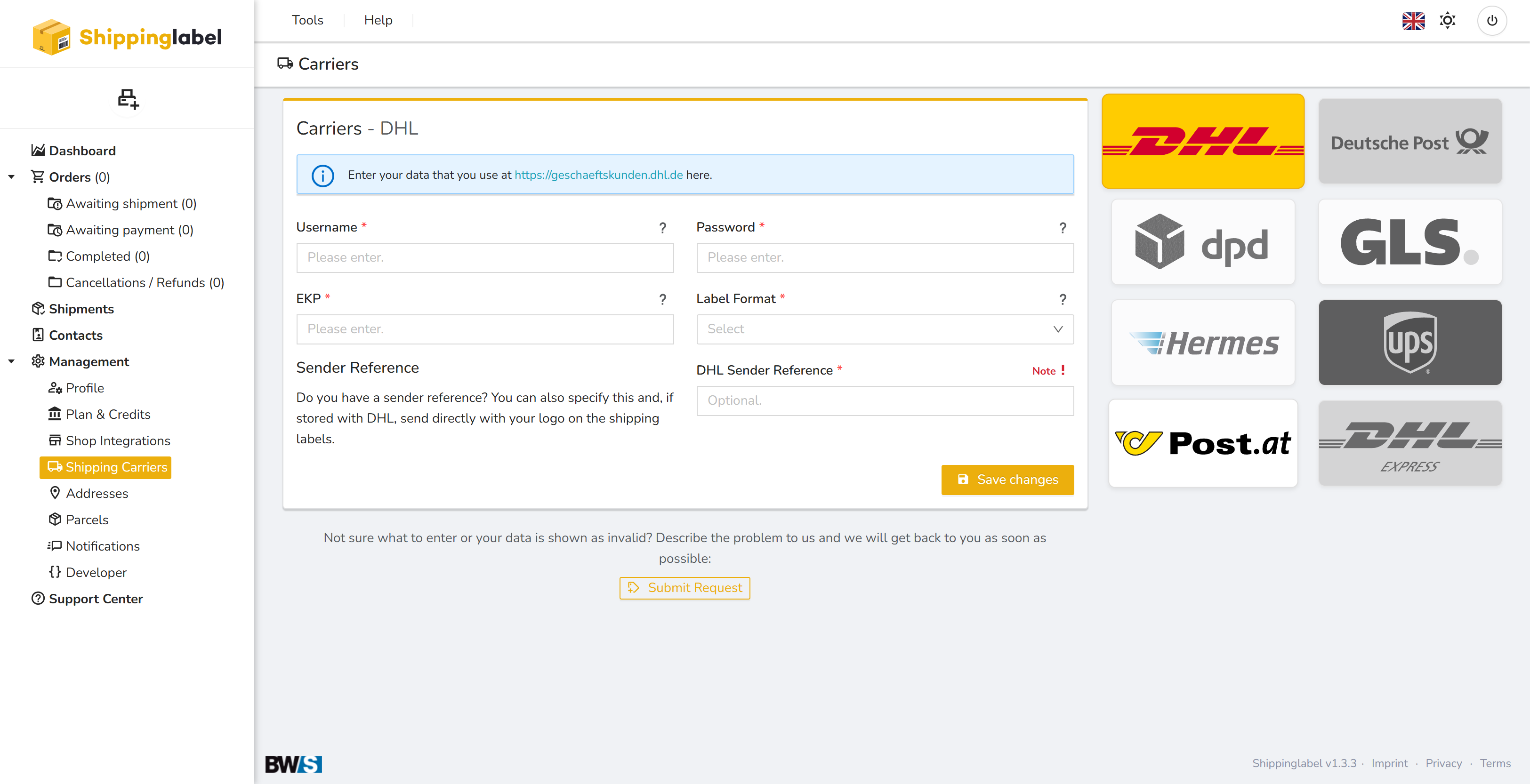
Requirements
You will need:
- An active DHL Business Customer account:
🔗 https://geschaeftskunden.dhl.de - Valid access to the DHL Webservice “Versenden”
- The following information:
| Field | Required | Description |
|---|---|---|
| Username | ✅ | Your DHL webservice username |
| Password | ✅ | Corresponding password |
| EKP | ✅ | Your 10-digit DHL EKP (customer number) |
| Label Format | ✅ | e.g., A5, ZPL, or other supported formats |
| DHL Sender Reference | Optional | Used if a logo or sender reference is stored at DHL |
Step-by-step Setup Guide
1. Open DHL under Shipping Carriers
Go to Management > Shipping Carriers in Shippinglabel.
Click the DHL logo (not DHL Express!).
2. Enter your credentials
Fill in the following fields using your DHL credentials:
- Username – Webservice username from the DHL business portal
- Password – Your corresponding password
- EKP – 10-digit DHL EKP number
- Label Format – e.g., A5, ZPL, or others
- DHL Sender Reference – Optional, used if a logo/reference is configured
3. Add shipping procedure
A shipping procedure (Verfahren) is essential to create labels.
Example: V82PARCEL – Participation number: 12
Click Add procedure.
Enter your enabled procedure and participation number.
Save it via Action > Select.
📌 You’ll receive the participation number from your DHL account manager.
Without a valid procedure, label creation will not be possible.
4. Test the connection (optional)
Use the Test connection button to verify your credentials.
5. Save changes
Click Save changes to complete the connection setup with DHL.
Troubleshooting
If the connection does not work:
- Check for typos or missing inputs
- Ensure EKP and participation numbers are correct and active
- Confirm that your DHL account is activated for the “Versenden” webservice
- Make sure the correct label format is selected (e.g., A5, ZPL)
- If unsure, use Submit Request to contact support
✅ Summary of Required Fields
| Field | Required | Description |
|---|---|---|
| Username | ✅ | DHL webservice username |
| Password | ✅ | DHL webservice password |
| EKP | ✅ | 10-digit DHL customer number |
| Label Format | ✅ | e.g., A5, A6, ZPL depending on printer |
| DHL Sender Reference | Optional | Reference to stored logo in DHL system |
| Shipping Procedure | ✅ | e.g., V82PARCEL – required for label creation |