To process shipments directly via UPS using Shippinglabel, you first need to link your UPS account. This guide explains step-by-step how to enter your credentials, select your default shipping product, and optionally renew your token.
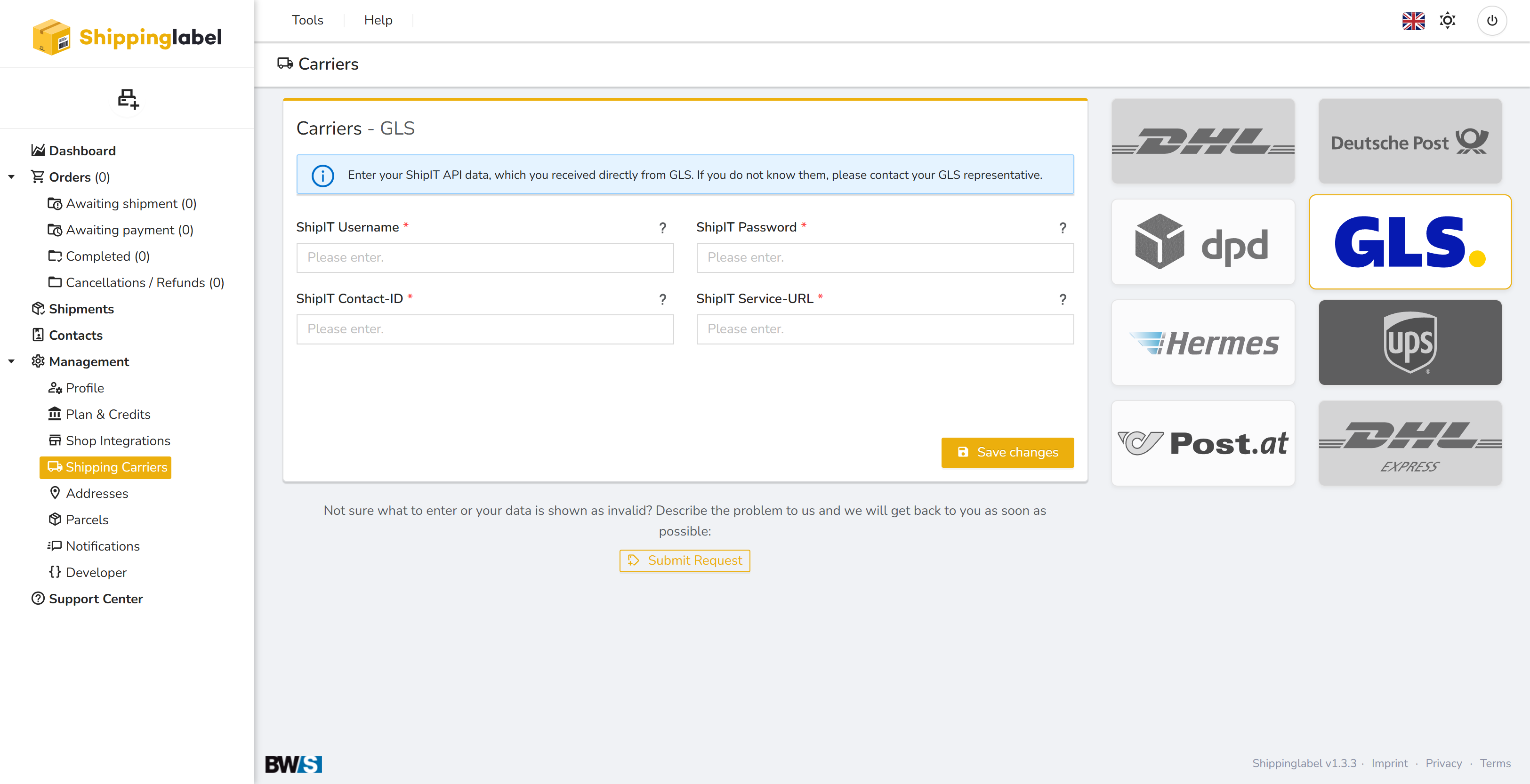
Step-by-step Setup Guide
1. Open the “Shipping Carriers” section
Log in to Shippinglabel.
Go to Management > Shipping Carriers.
Click the UPS logo on the right side.
2. Enter your UPS credentials
Enter your UPS Account Number into the corresponding field.
💡You can find your account number in your UPS business portal or on your invoices.
3. Select a default product
Choose the UPS service you want to use by default from the Default Product dropdown:
- UPS Standard
- UPS Express
UPS Expedited
💡The available services depend on your UPS contract.
4. Save changes
Click Save changes to store your credentials and activate the connection.
Token Renewal (if already connected)
If your UPS account is already connected, a notification will show the token’s expiration date
(e.g. “valid until 12 Jan 2025, 20:45”).
- Click Renew Now to re-authorize your account.
- Follow the instructions in the UPS login window.
💡 Make sure to renew the token before it expires to avoid any service interruptions.
Troubleshooting
If the connection fails:
- Ensure that your account number is correct (case-sensitive)
- Check if the selected product is supported by your UPS contract
- Make sure your UPS access has not expired
- Use the Submit Request button to contact our support team if needed
✅ Summary of Required Fields
| Field | Description |
|---|---|
| UPS Account Number | Your UPS customer number |
| Default Product | Pre-selected UPS service (e.g., Express) |
| Token Renewal | Option available when a connection already exists |