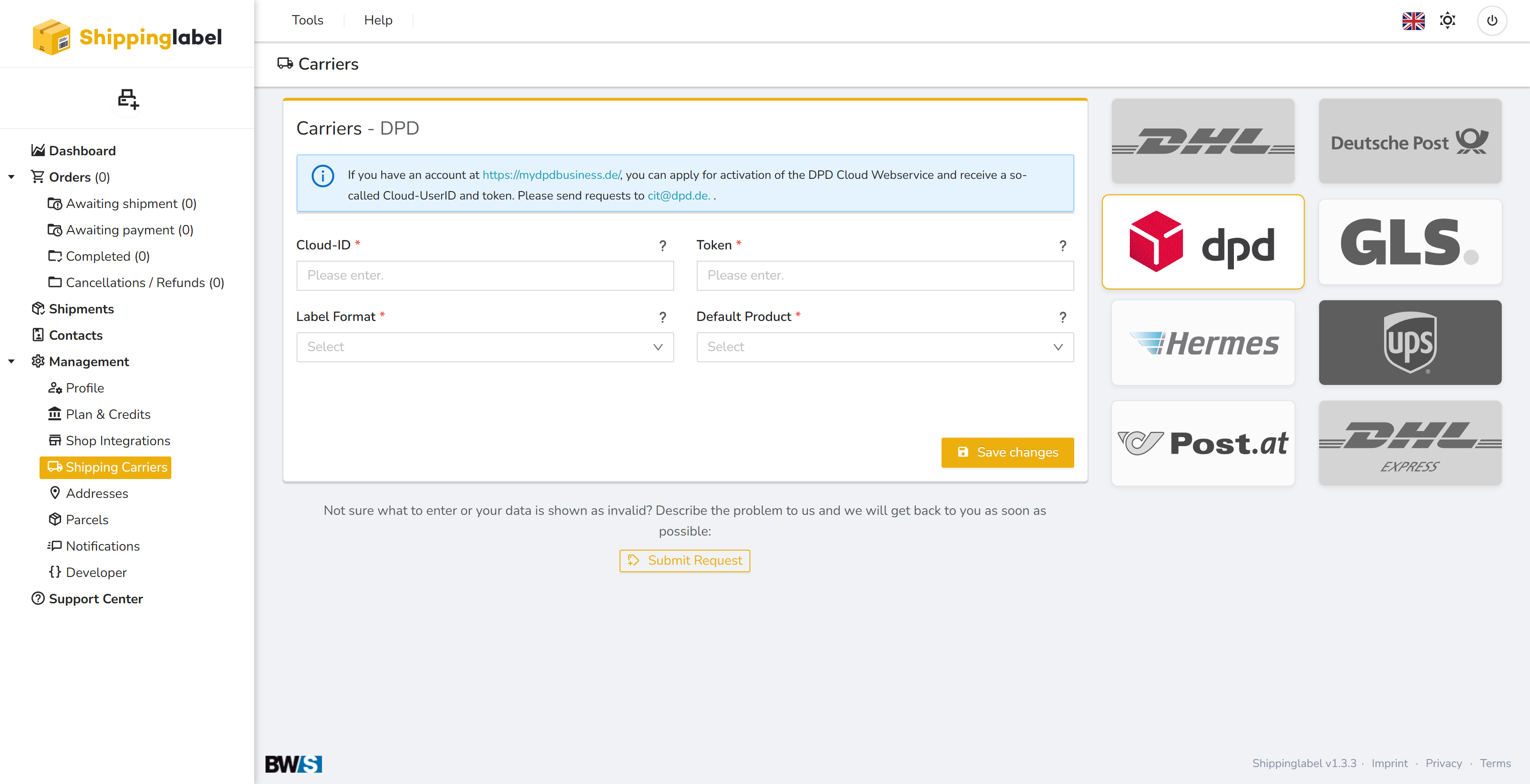
You can integrate the shipping provider DPD into Shippinglabel using the Cloud Webservice. For this, you need credentials from DPD and a one-time configuration in the Shippinglabel interface. This guide walks you through the setup step by step.
Requirements
Before you begin, please ensure:
- You have an active DPD business account:
🔗 https://mydpdbusiness.de/ - You have requested activation for the DPD Cloud Webservice.
- You have the following credentials:
| Field | Description |
|---|---|
| Cloud-ID | Your DPD Cloud UserID |
| Token | Your personal token for authentication |
Step-by-step Setup Guide
1. Open the “Shipping Carriers” section
In the left sidebar, go to Management > Shipping Carriers.
Click the DPD logo to open the settings.
2. Enter your credentials
- Cloud-ID: Enter your DPD Cloud UserID.
Token: Enter your personal token.
Hint: For security reasons, saved entries are hidden.
3. Select the Label Format
In the Label Format field, choose the format you want to use for your labels (e.g. A6, PDF).
4. Choose the Default Product
In the Default Product field, select the DPD service you want to use by default (e.g. Classic, Express).
❗ This field is mandatory.
5. Test the connection
Click the Test connection button to verify that your credentials are correct.
If successful, you will see a confirmation message.
6. Save changes
Finally, click Save changes to activate the connection.
Troubleshooting
If your data is not accepted or a connection cannot be established:
- Double-check the credentials.
- Ensure that you are not using a test account. DPD test access is limited.
- Use the Submit Request function in the interface to contact Shippinglabel support.
✅ Summary of Required Fields
| Field | Description |
|---|---|
| Cloud-ID | Your Cloud UserID from DPD |
| Token | Personal authentication token |
| Label Format | Selectable label format |
| Default Product | Predefined DPD shipping service |